How to Delete an Enrollment in KMx
Once you've logged into the administrator portal, you can manage member enrollments efficiently.
1. Introduction
This tutorial guides you through deleting a member's enrollment step-by-step.
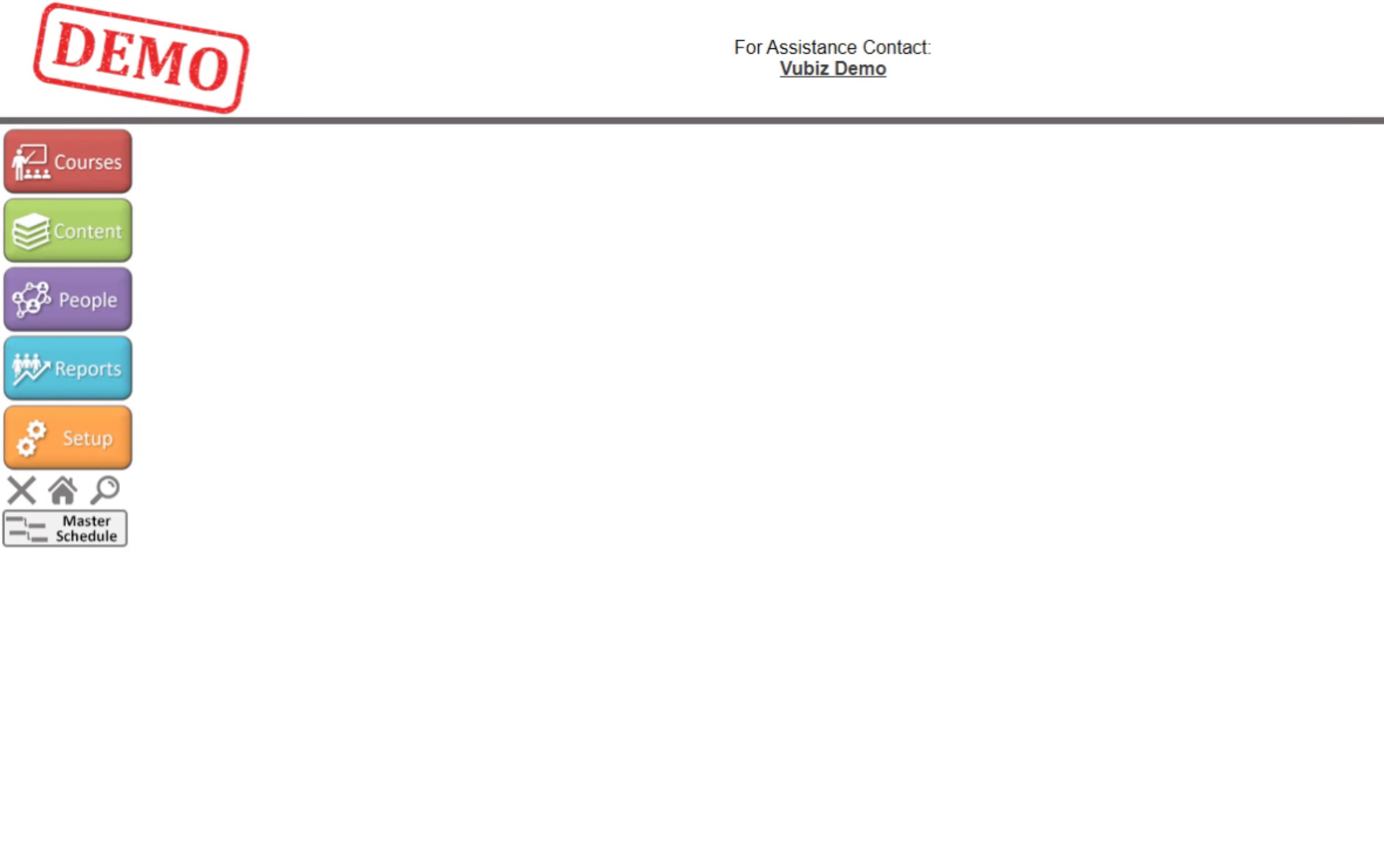
2. Access People Section
Once you've logged into the administrator portal, click on people.
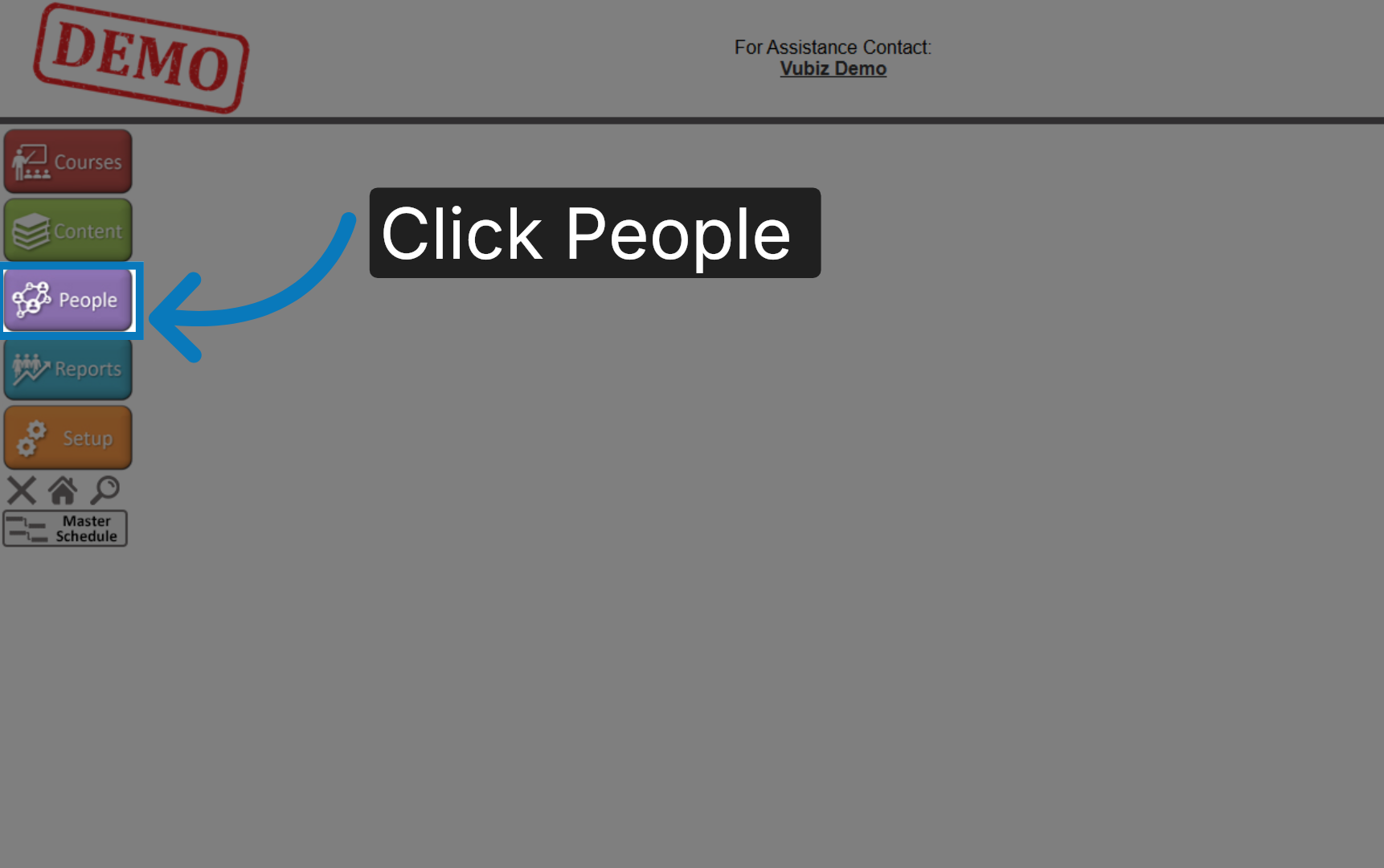
3. Open Member Search Options
You can then search for the individual whose enrollment you wish to delete. Click "Search for Member".
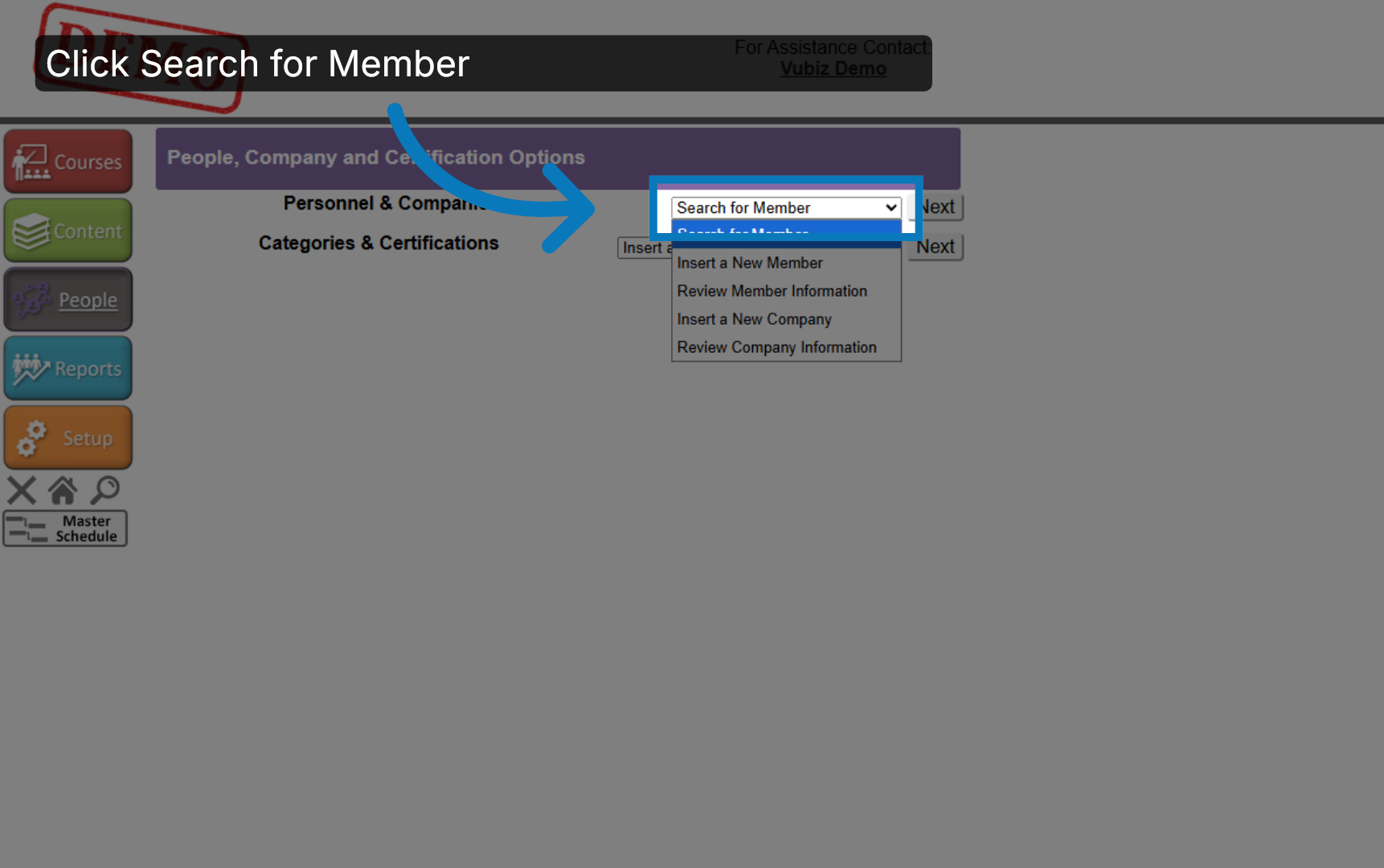
4. Proceed to Next Step
Click "Next".
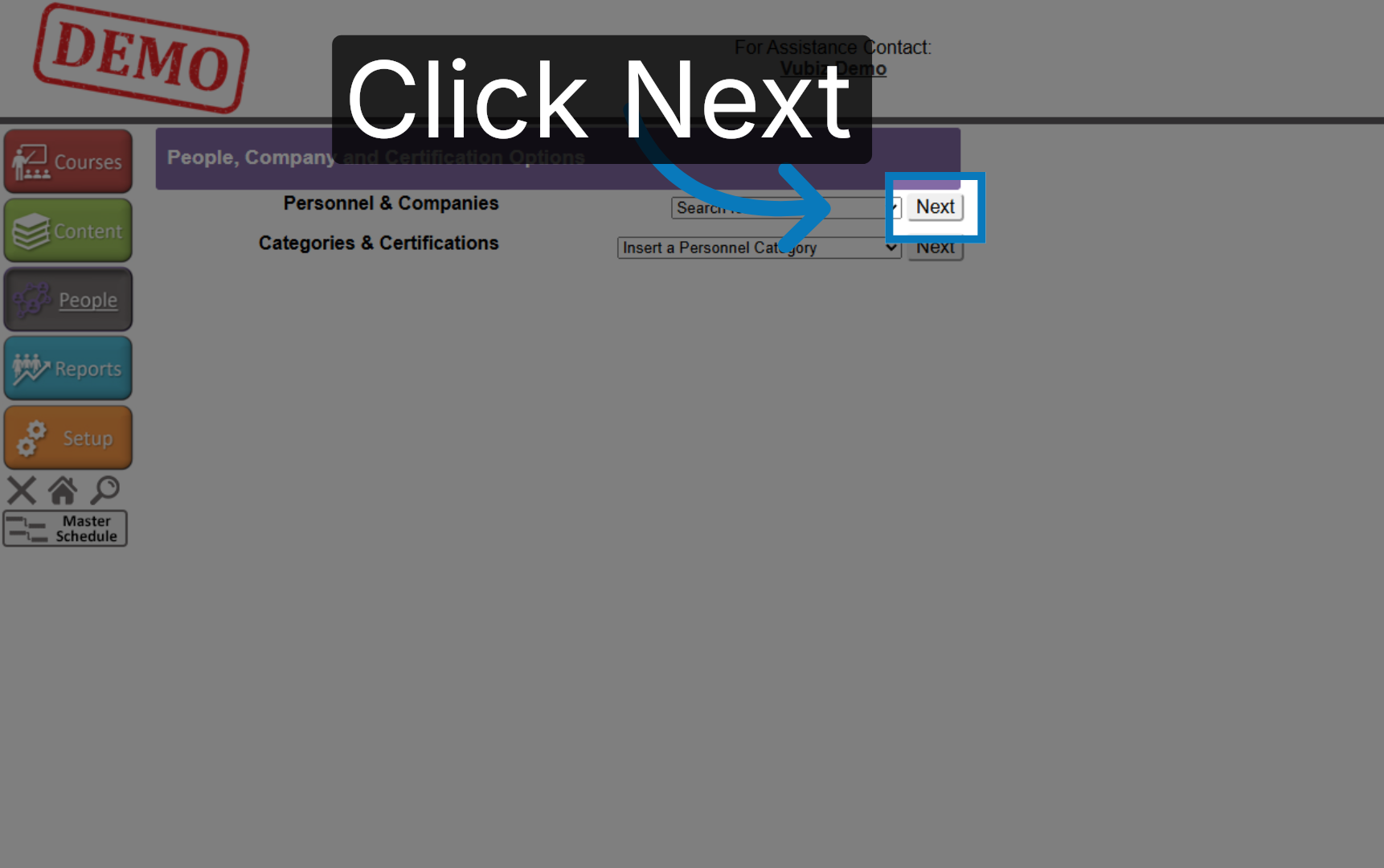
5. Initiate Search
Click the Search button
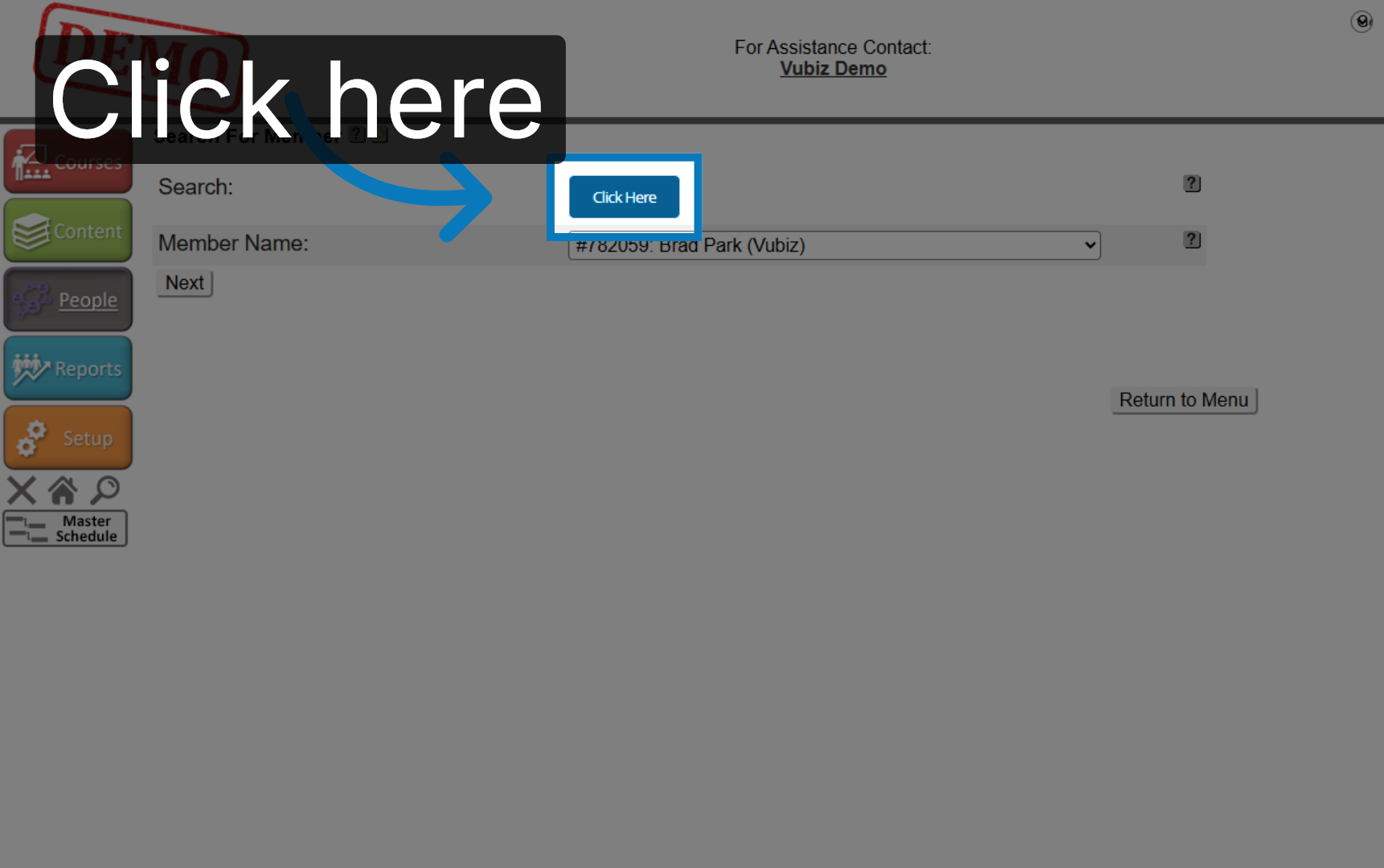
6. Click Search Button
Click in the Search text box
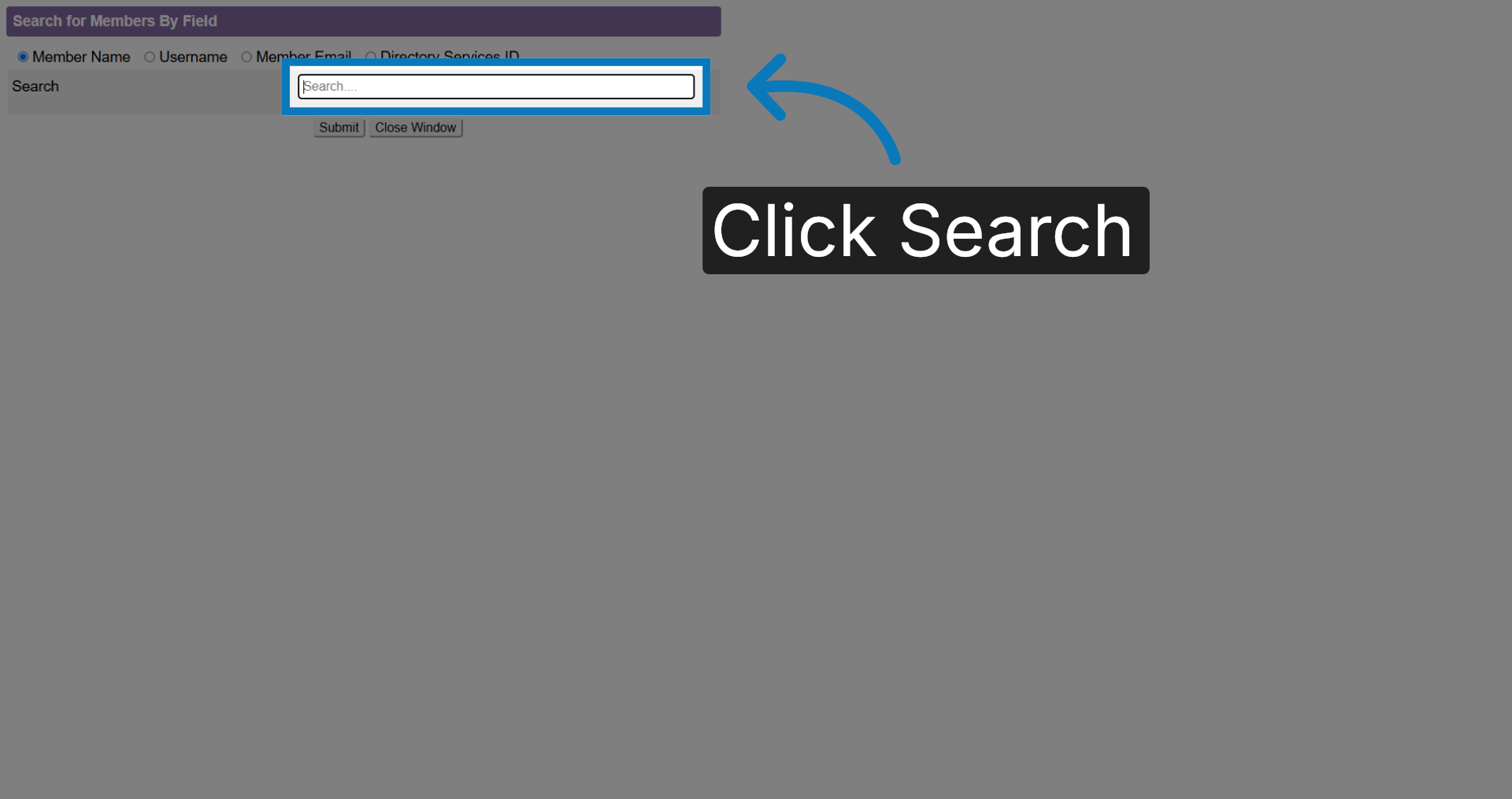
7. Enter Member Name
Enter the individual's first or last name.
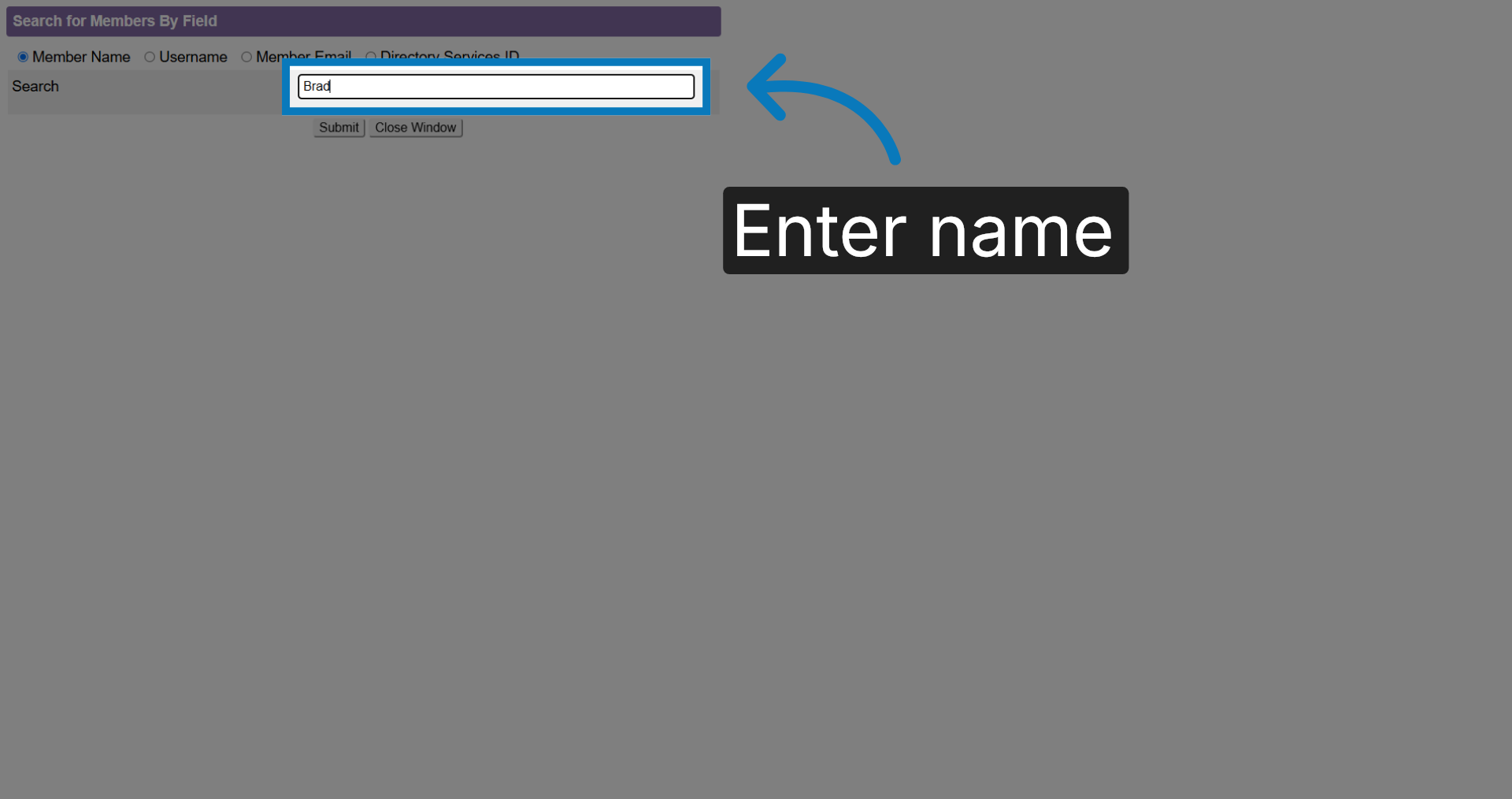
8. Submit Search Query
Click "Submit".
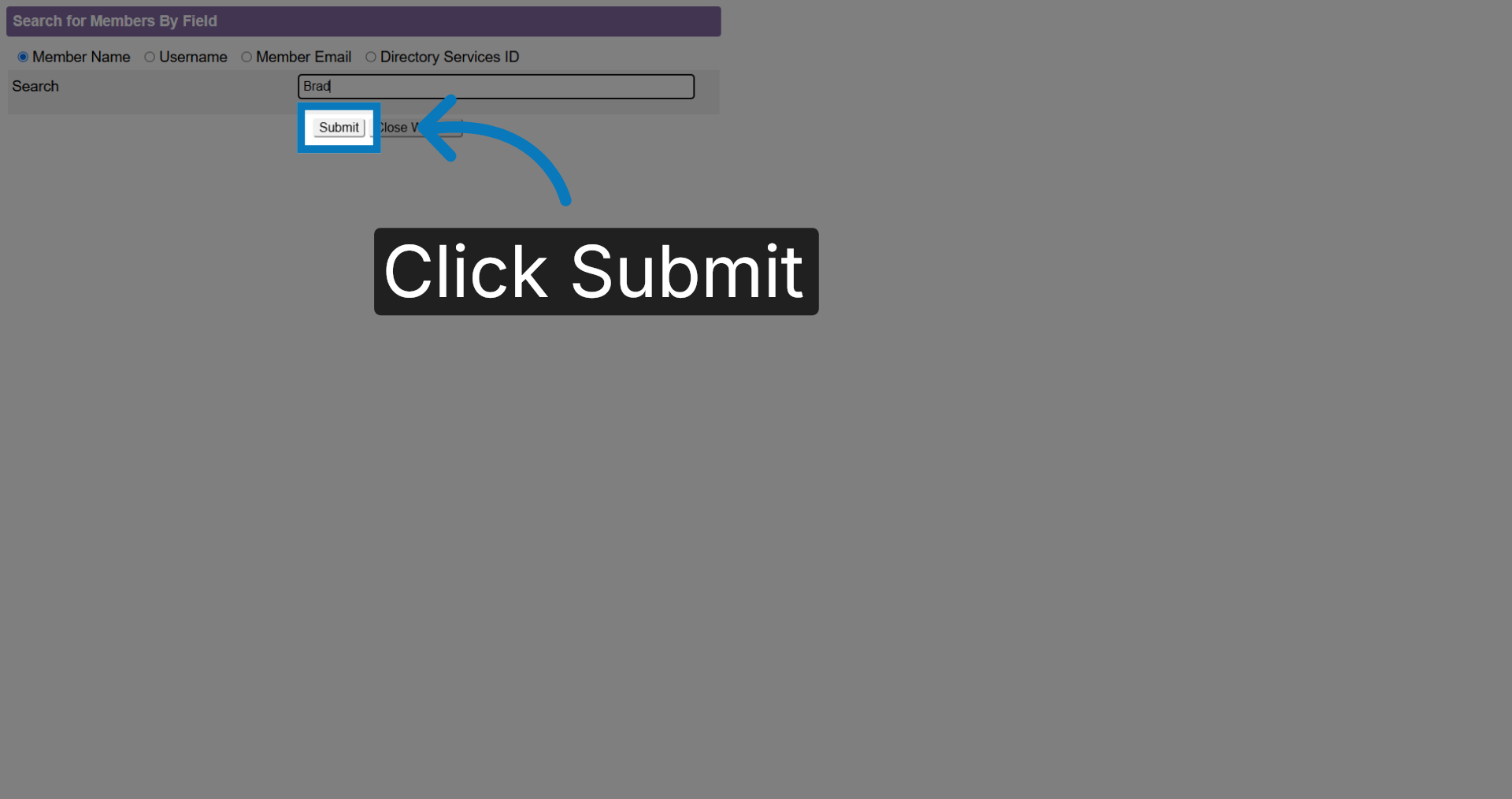
9. Select Member Profile
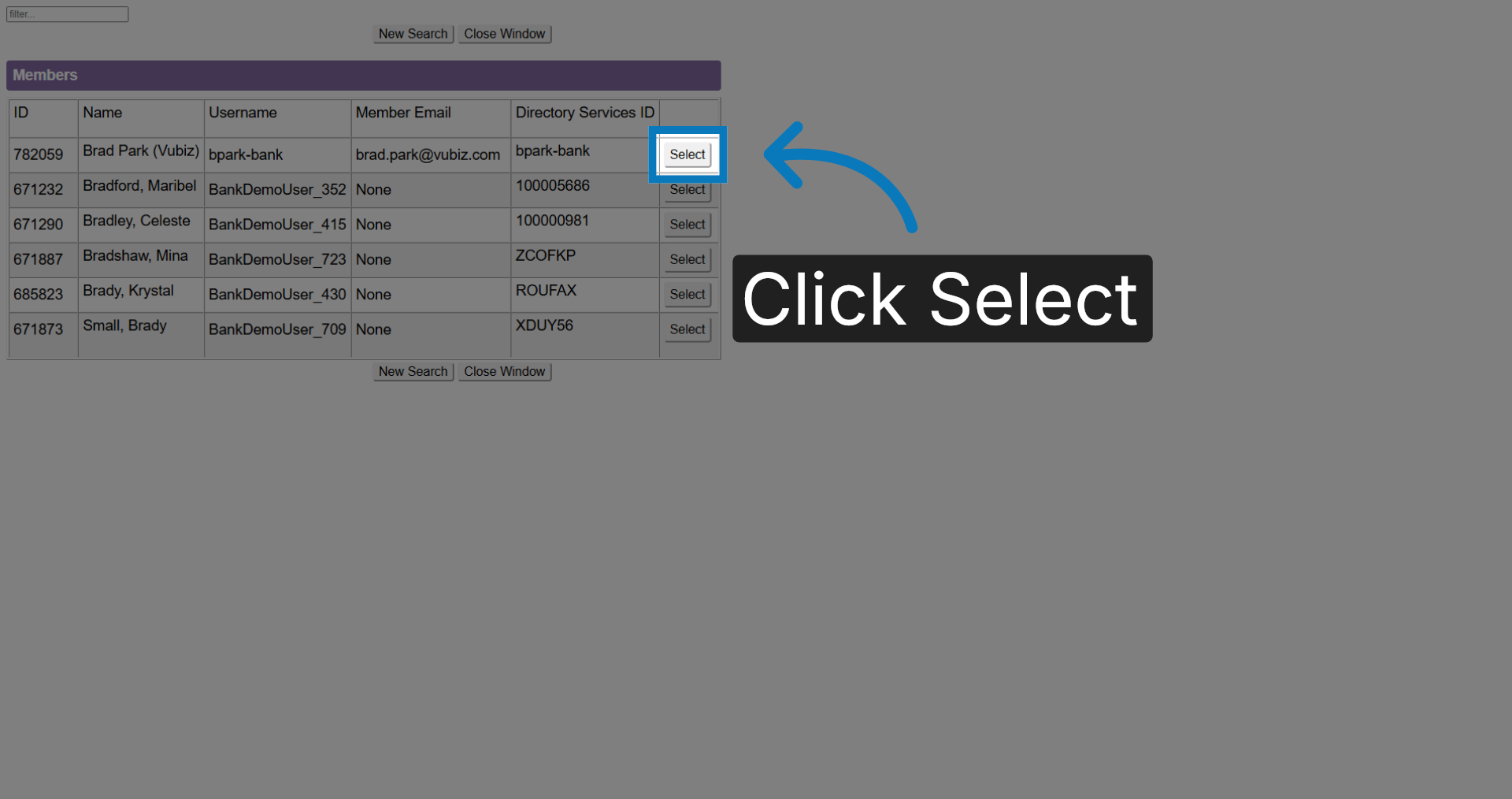
Locate the profile you wish to delete the enrollment from and click "Select ".
10. Open Enrollment Section
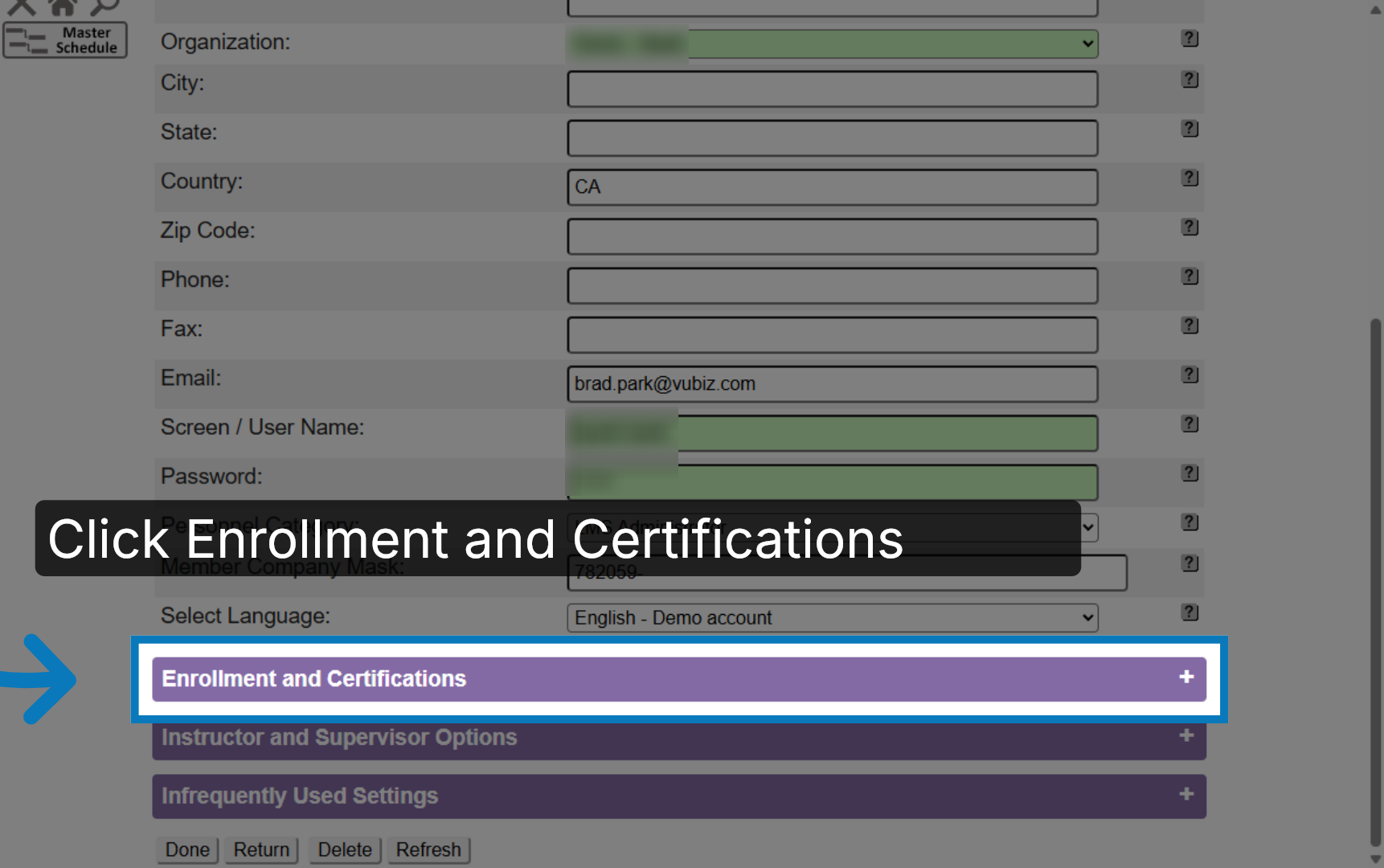
Once the employee's profile appears, scroll down and expand the Enrolment and Certifications area by clicking "Enrollment and Certifications".
11. Access Enrollment Details
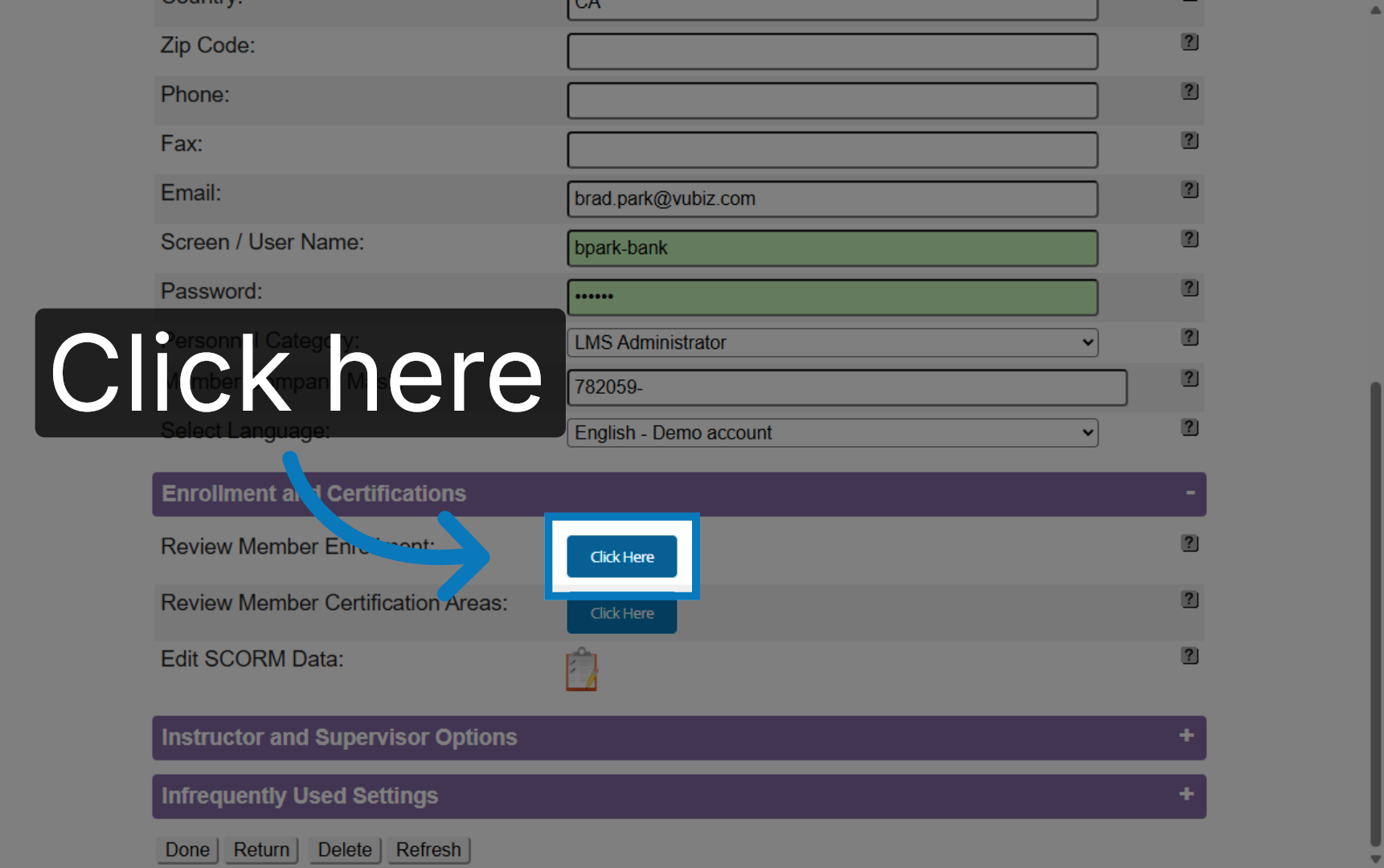
Locate the Review Member Enrollment option, and select the Click here button.
12. Review Member Enrollment
13. Locate Enrollment To Delete
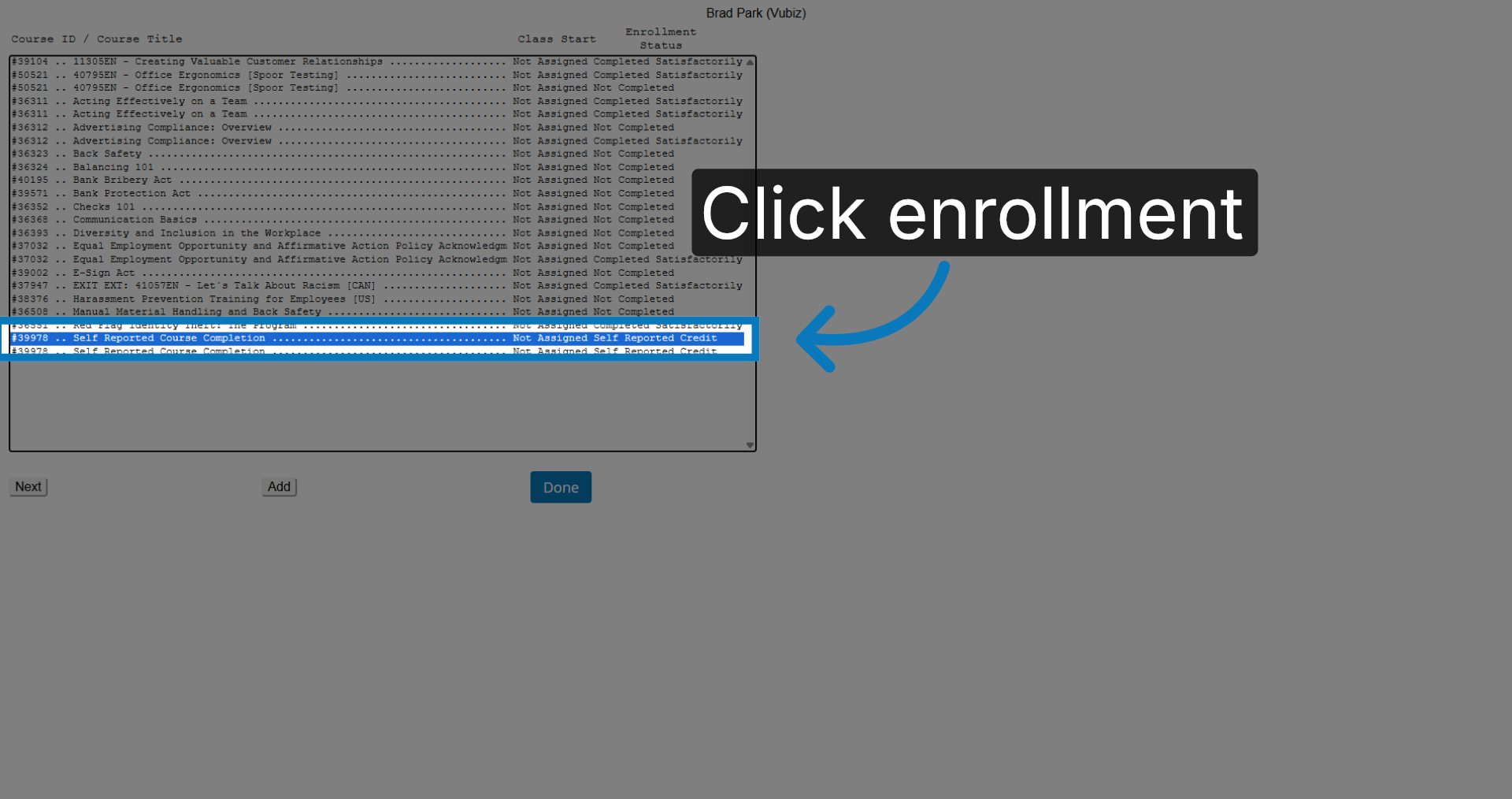
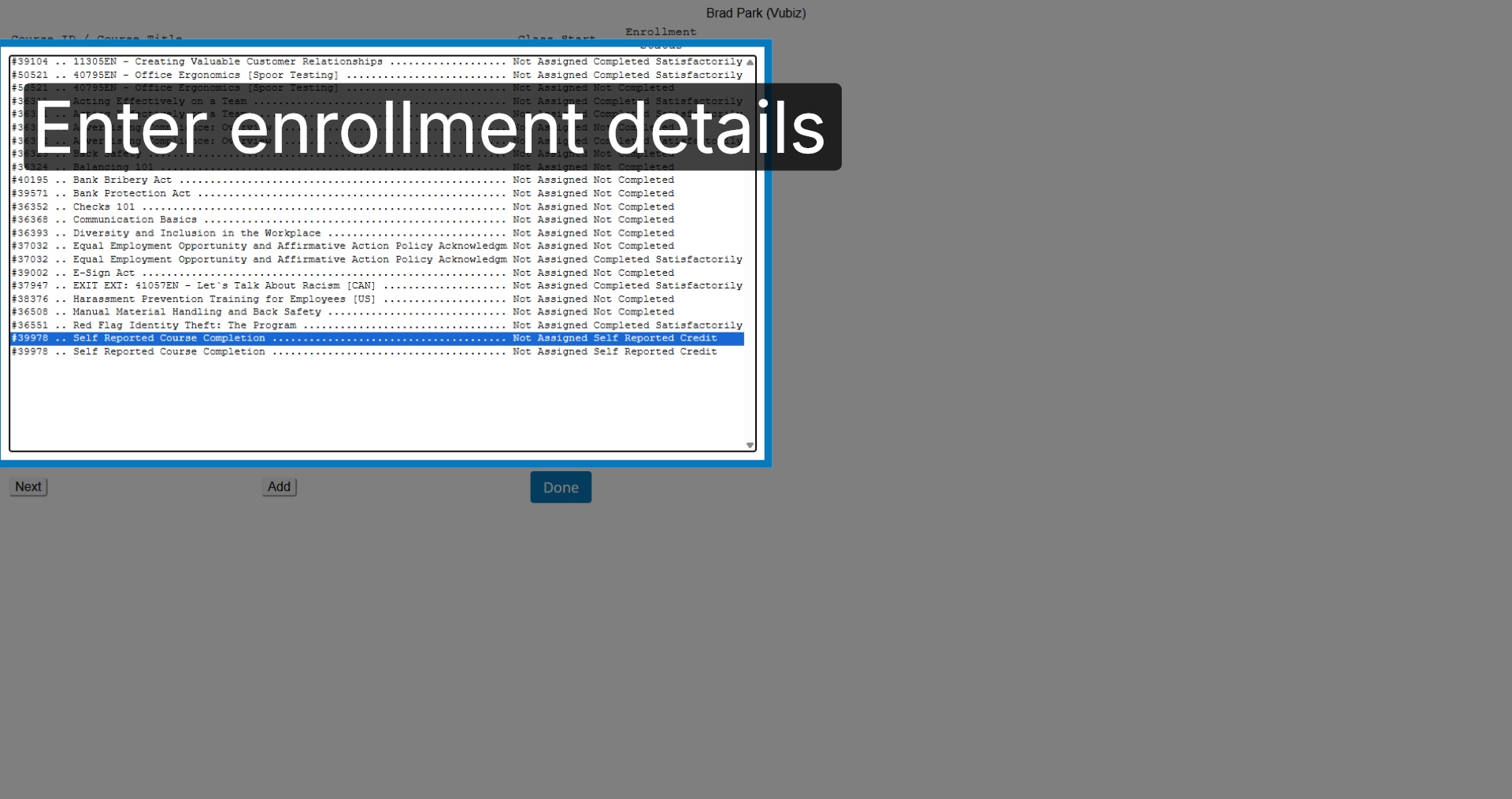
Locate the enrollment that you wish to delete.
14. Proceed To Deletion Step
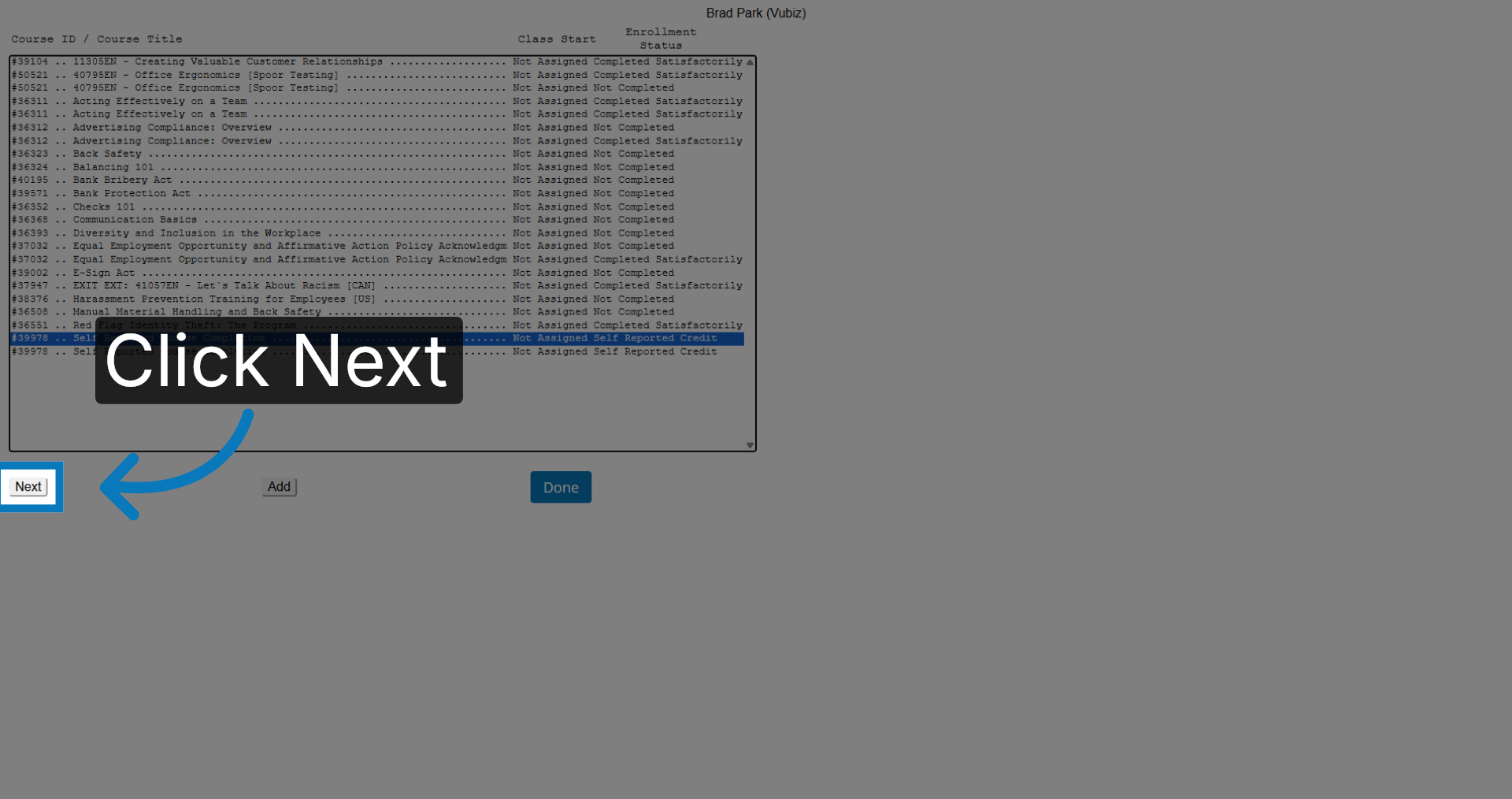
Select it and click "Next".
15. Delete Enrollment
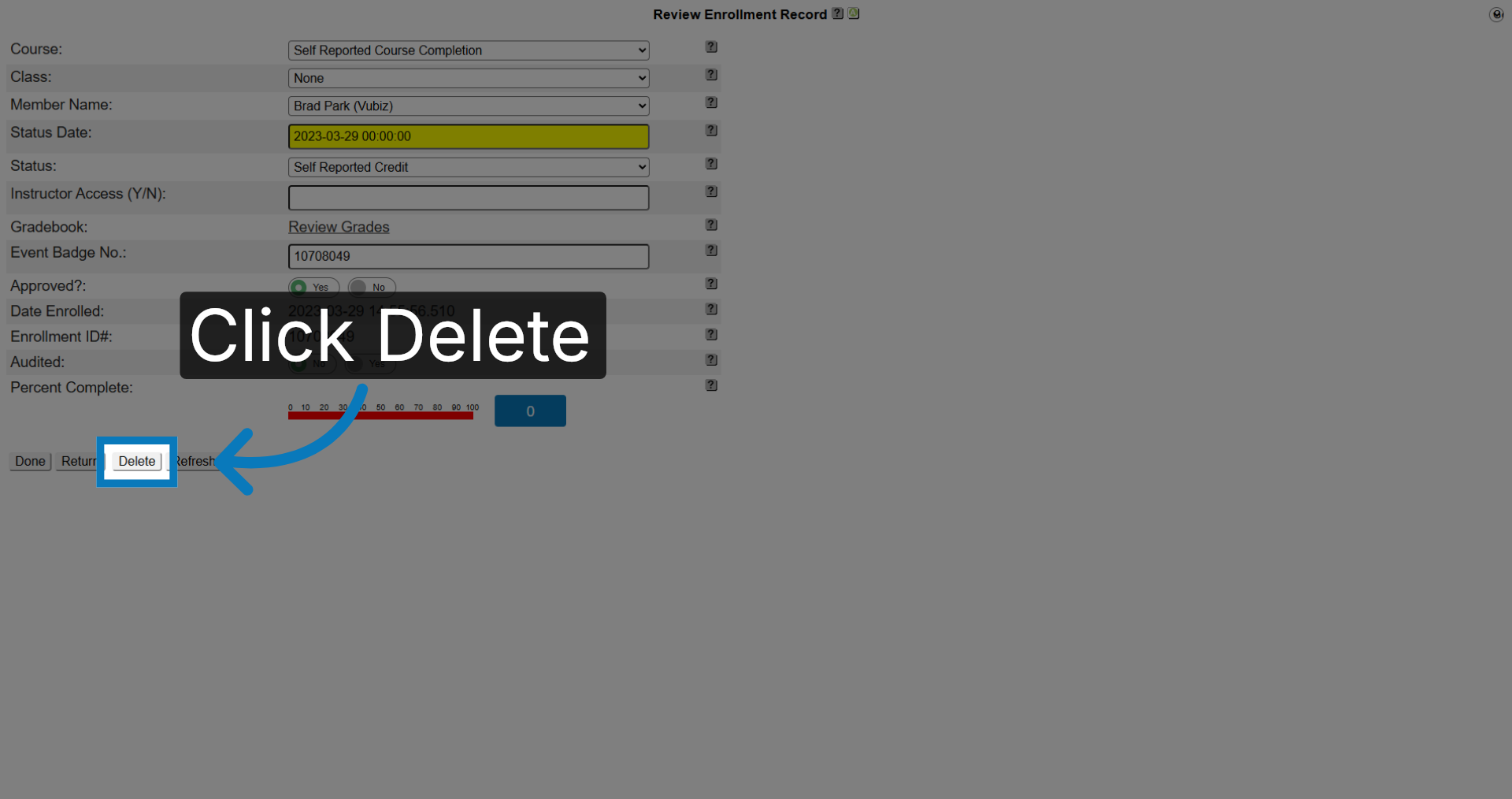
Click "Delete" to remove the enrollment.
16. Confirm Deletion Completion
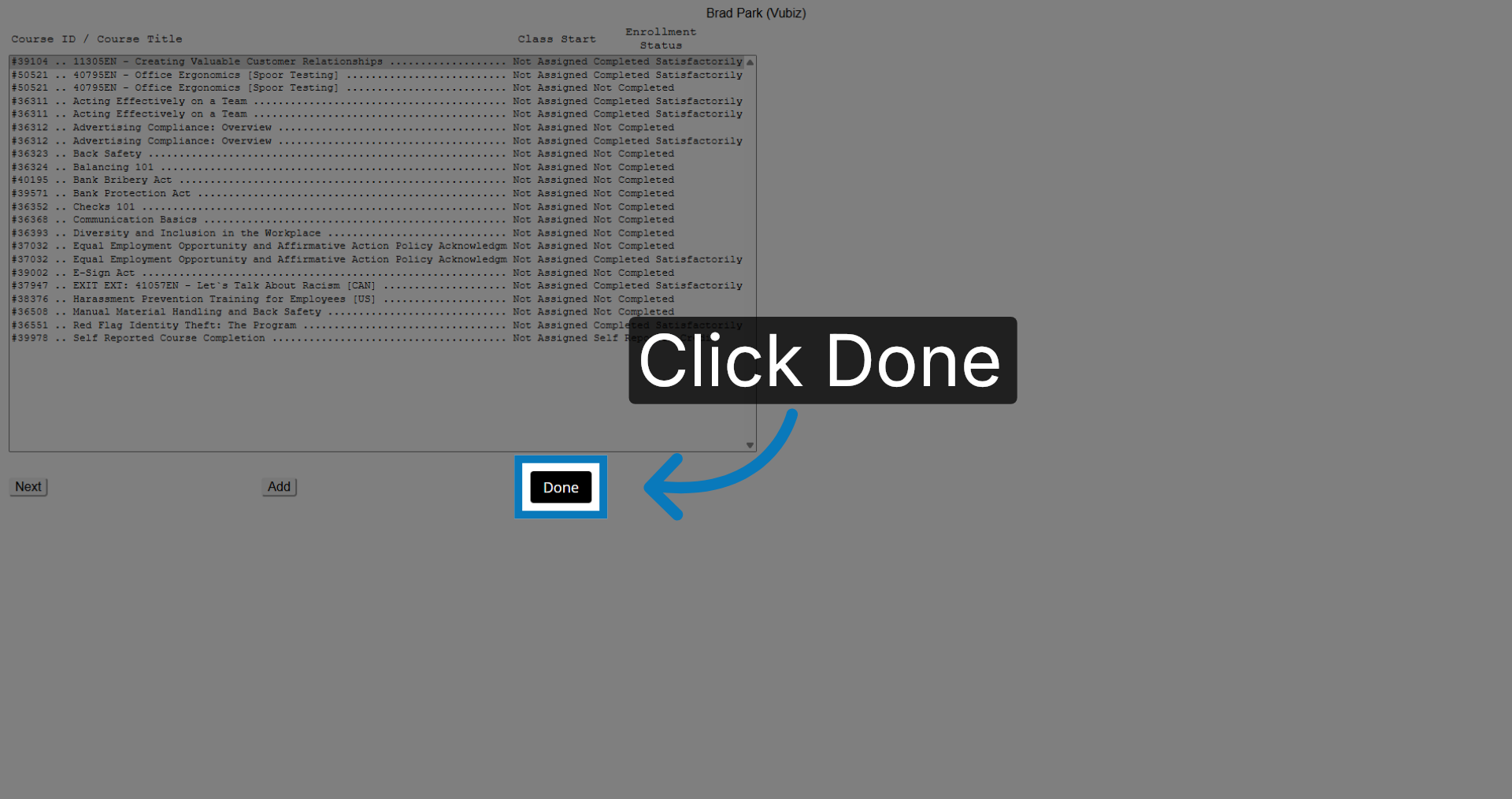
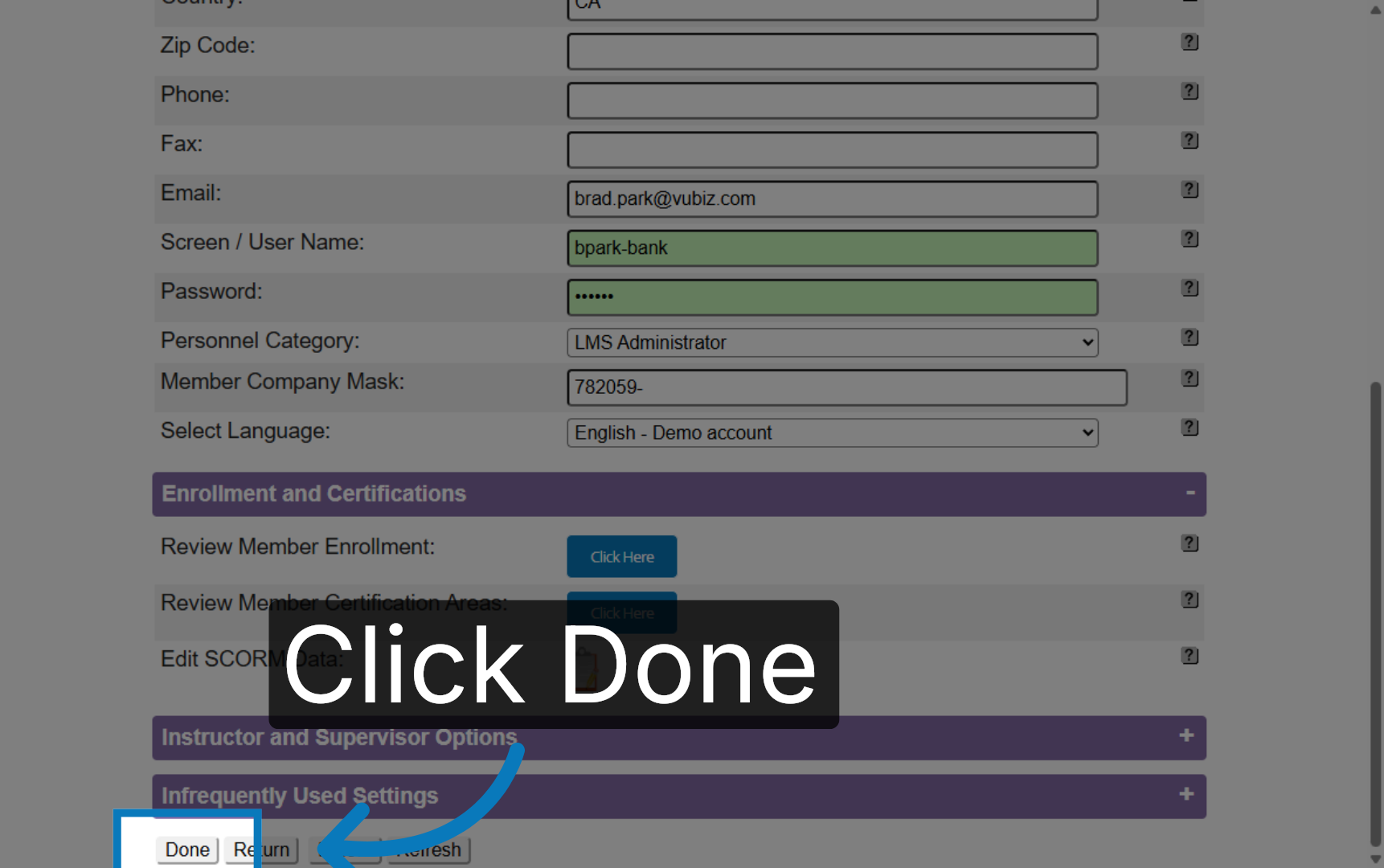
Click "Done" when finished.
17. Finalize Profile Update
And done at the bottom of the profile.
You have successfully deleted a member's enrollment in the KMx portal. To manage additional enrollments or update member information, continue exploring the portal's features.