Manage Batch User Import and Export in KMx Platform
Once you have logged into the administration side, this guide will help you understand how to use the Excel template to add, edit, or delete learners all at once.
1. Introduction
This tutorial walks you through the batch user import and export process to efficiently manage your organization's user data.
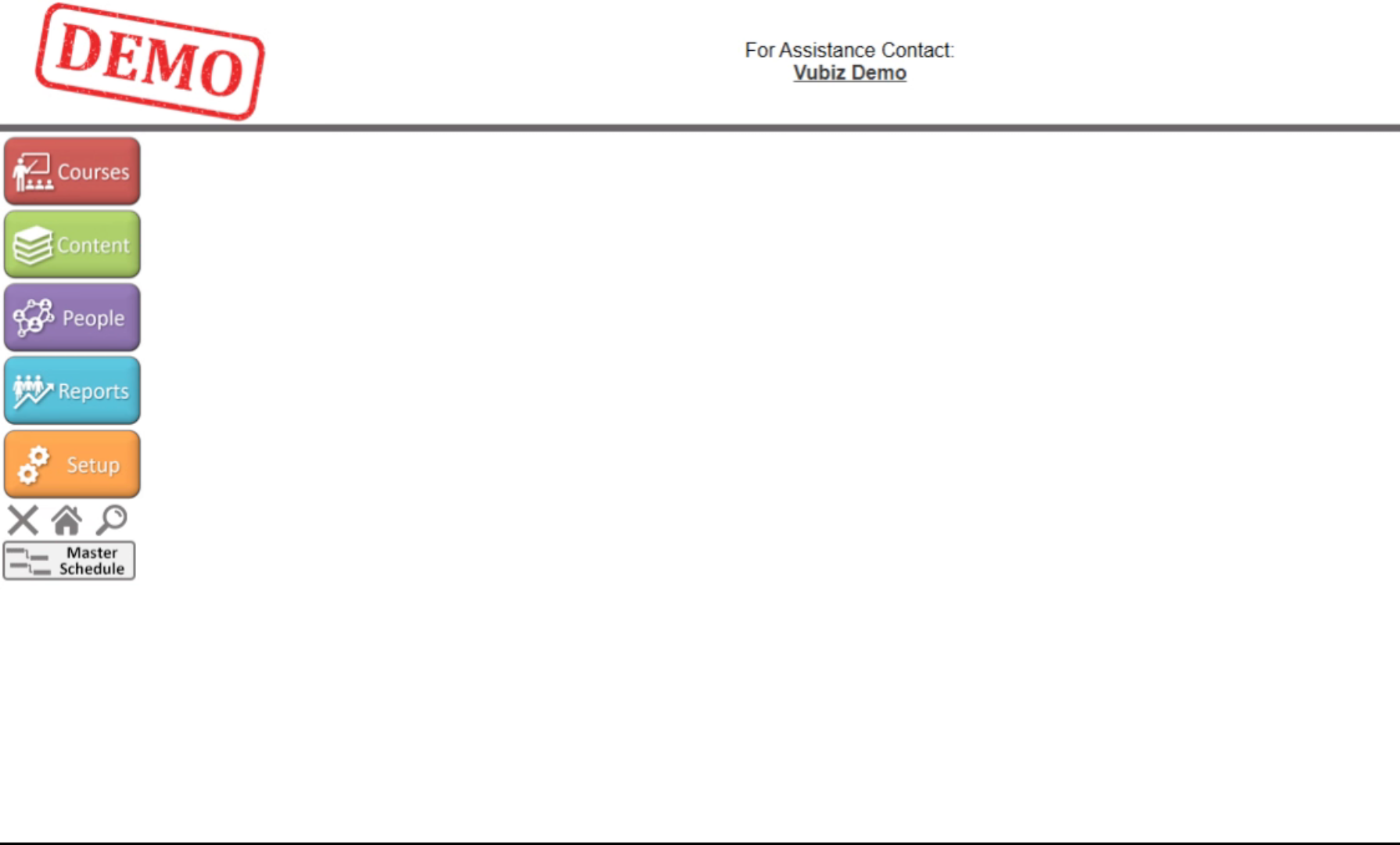
2. Access Setup Menu
To start the process, click on Setup.
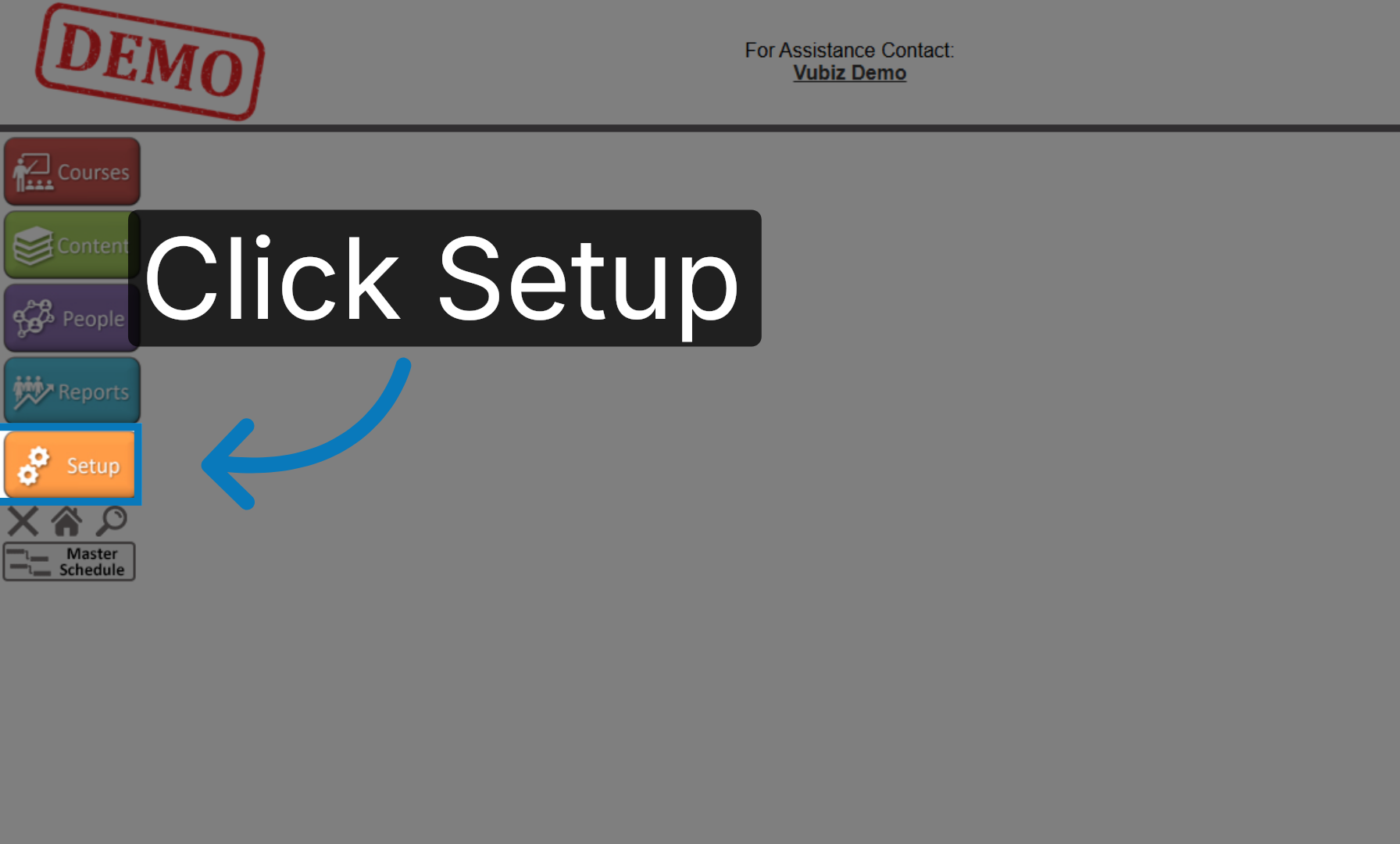
3. Select Member Administration
Under Site Configuration, select the Member Administration option
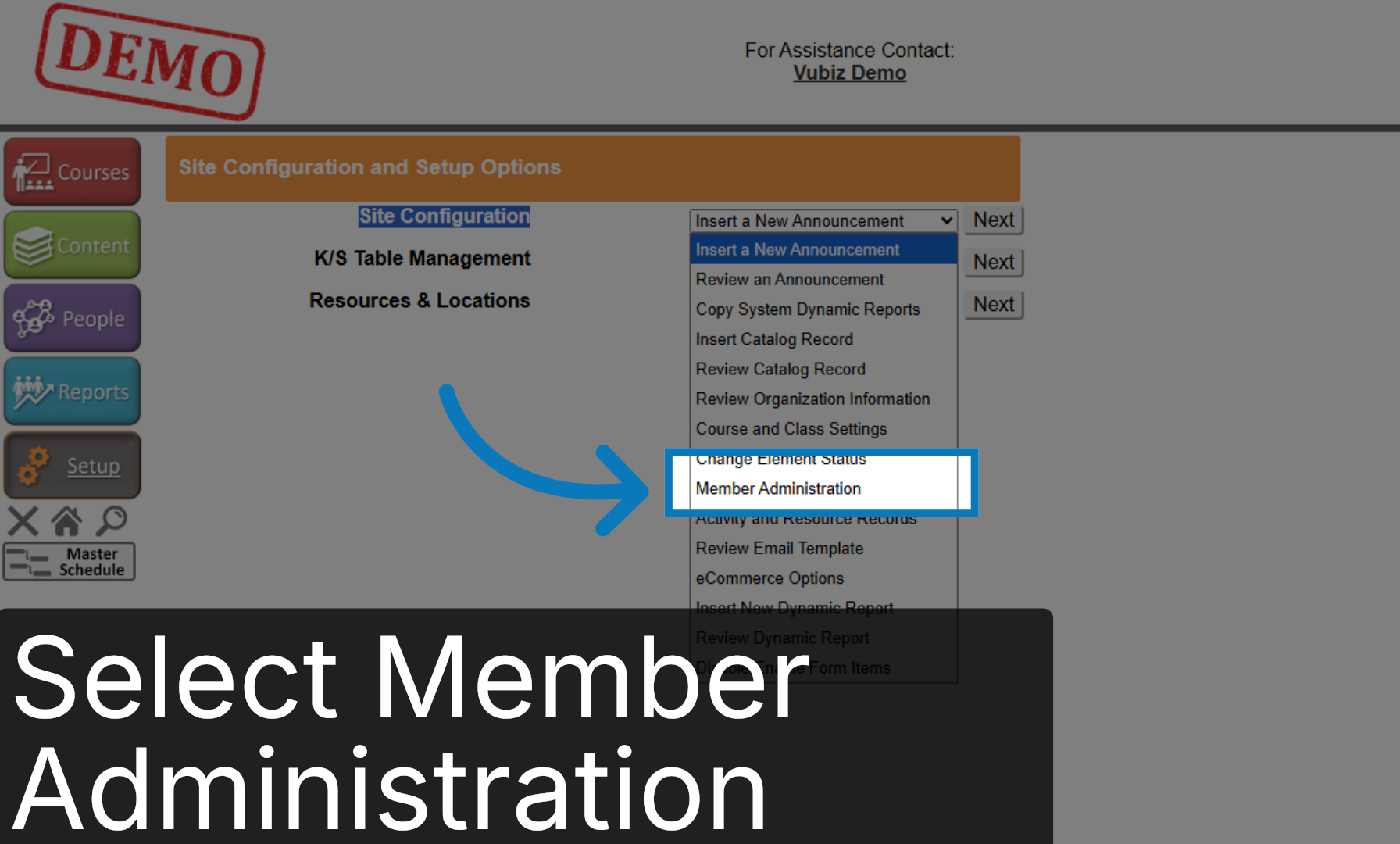
4. Proceed to Next Step
Click Next.
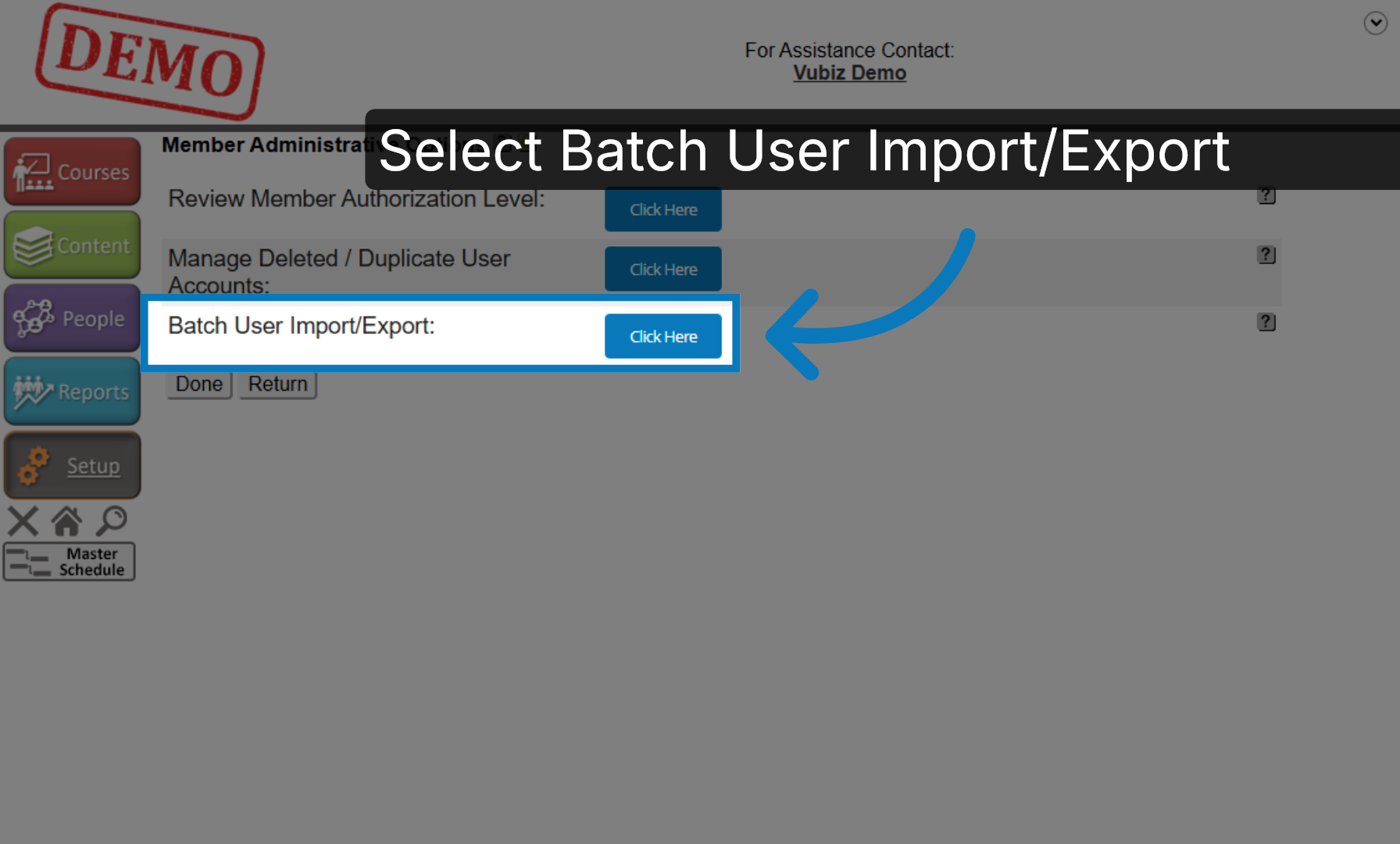
5. Choose Batch User Import/Export
Select the Batch User Import or Export option.
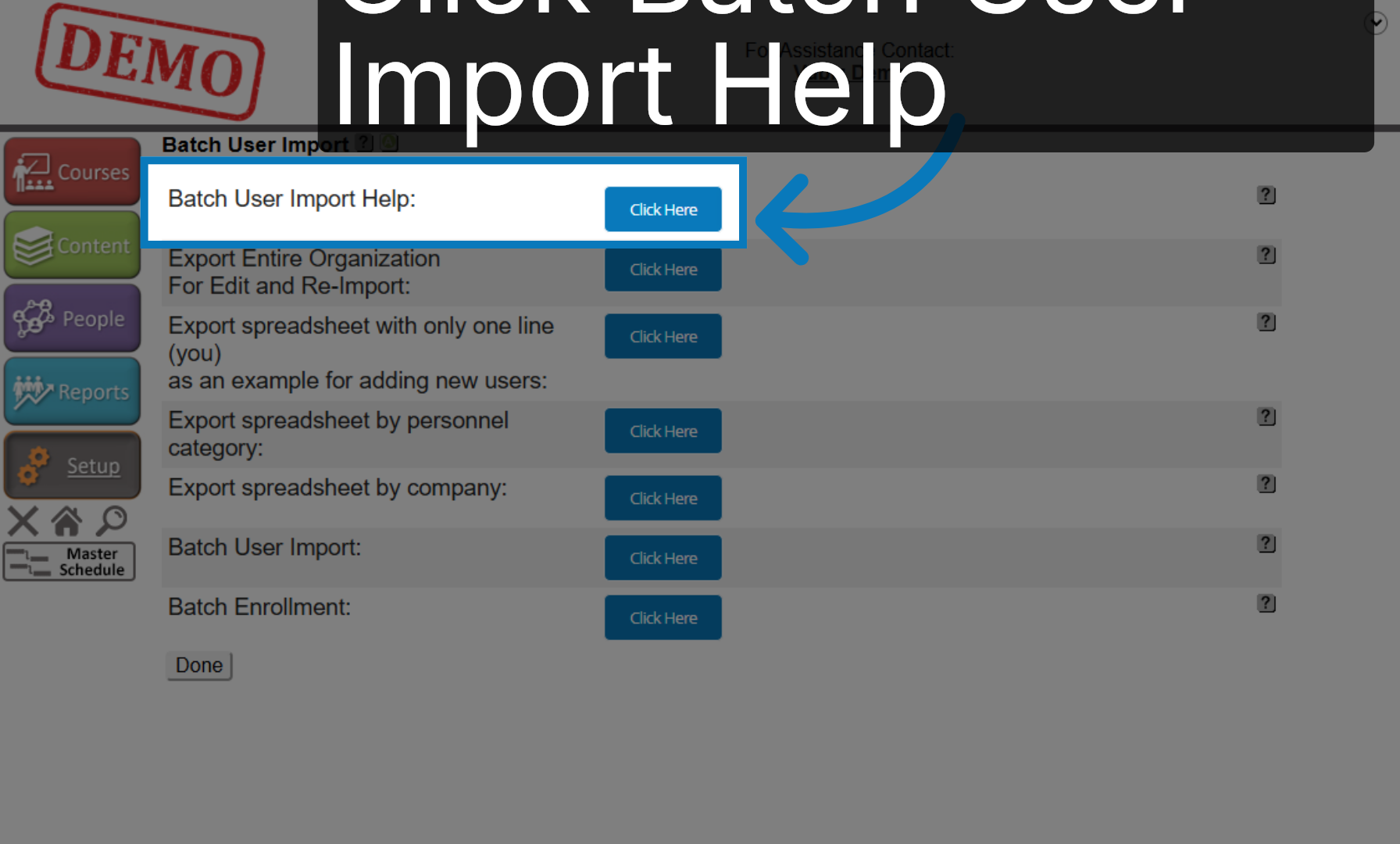
6. Open Batch User Import Help
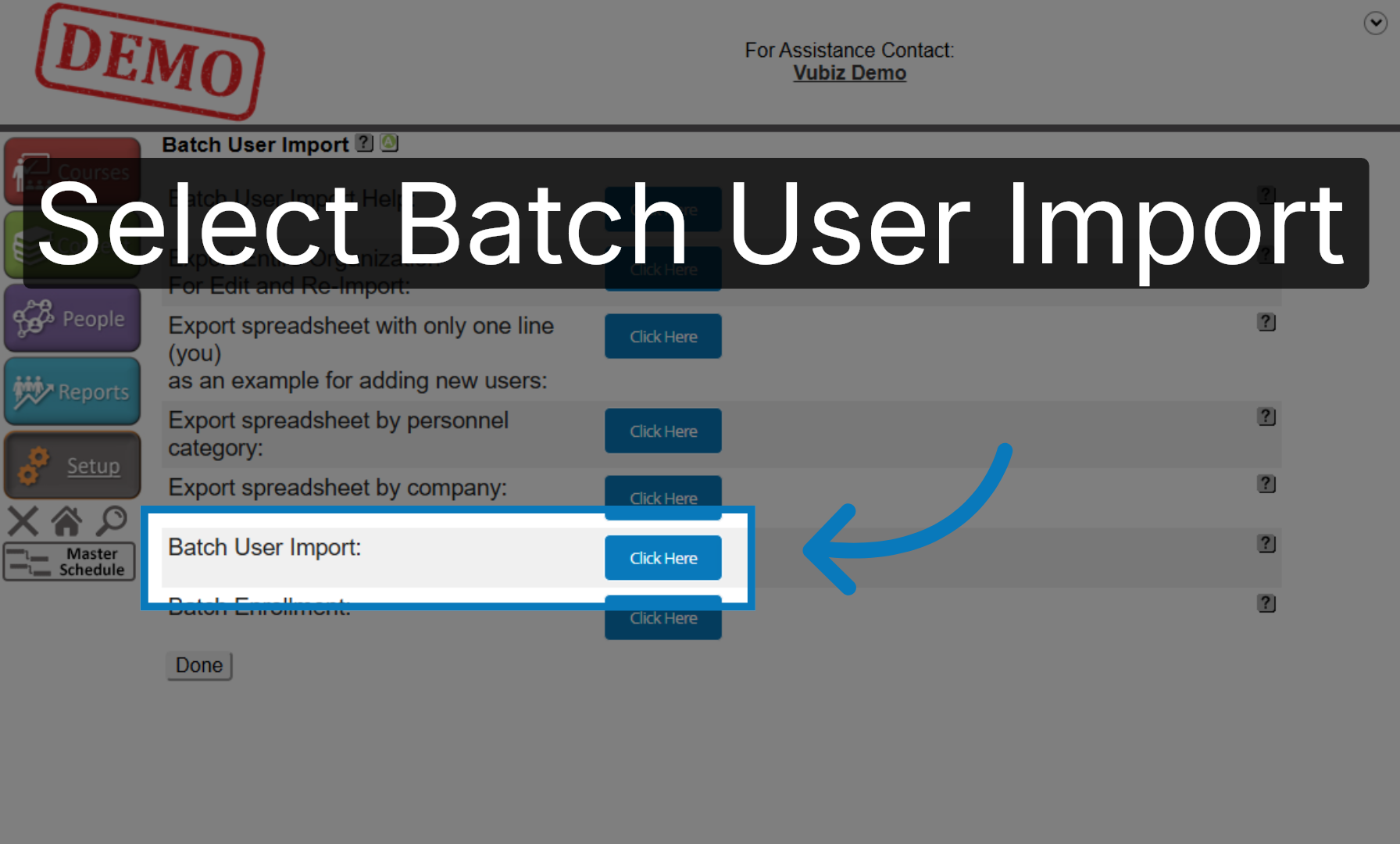
The options available here are batch user import help guides.
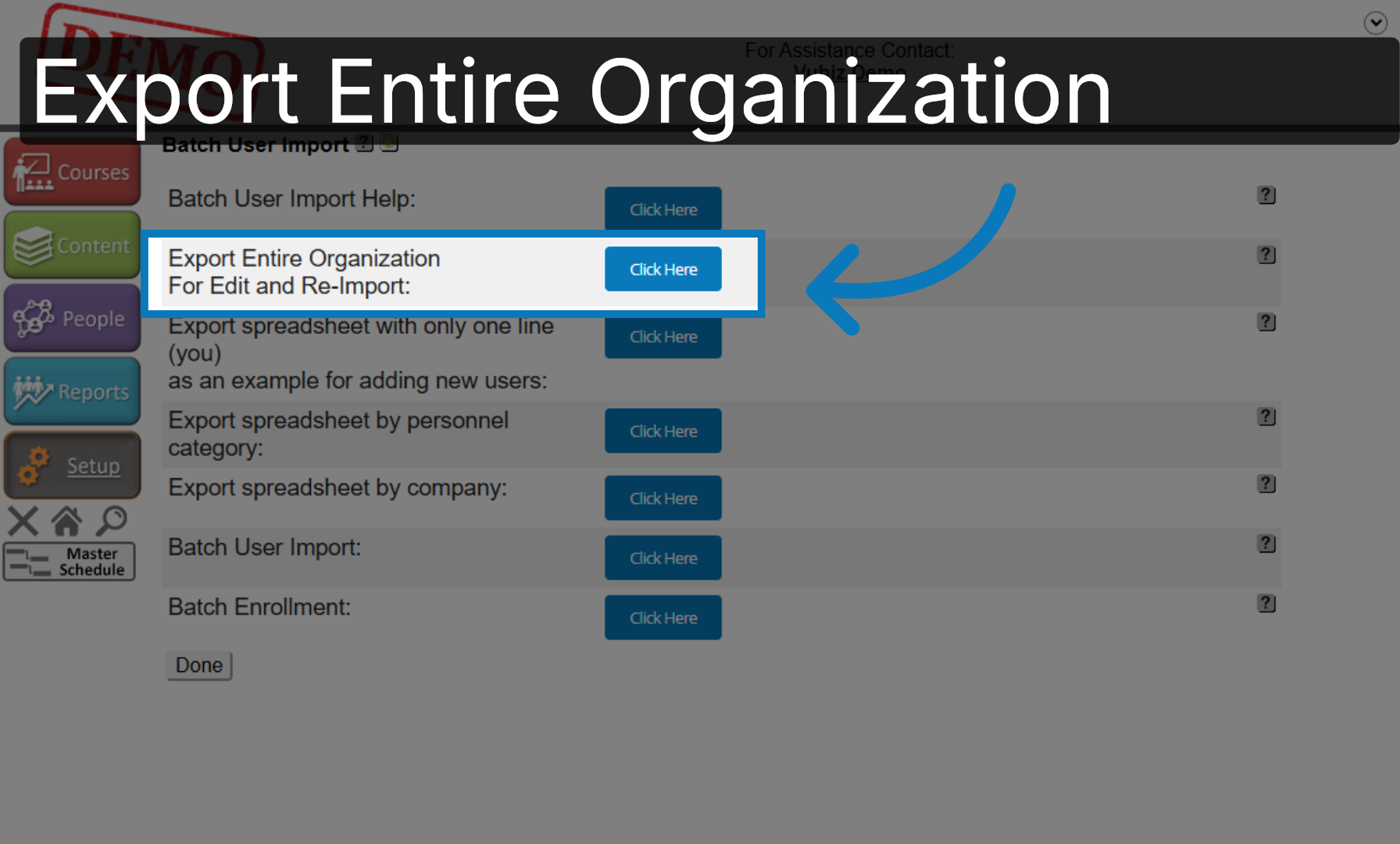
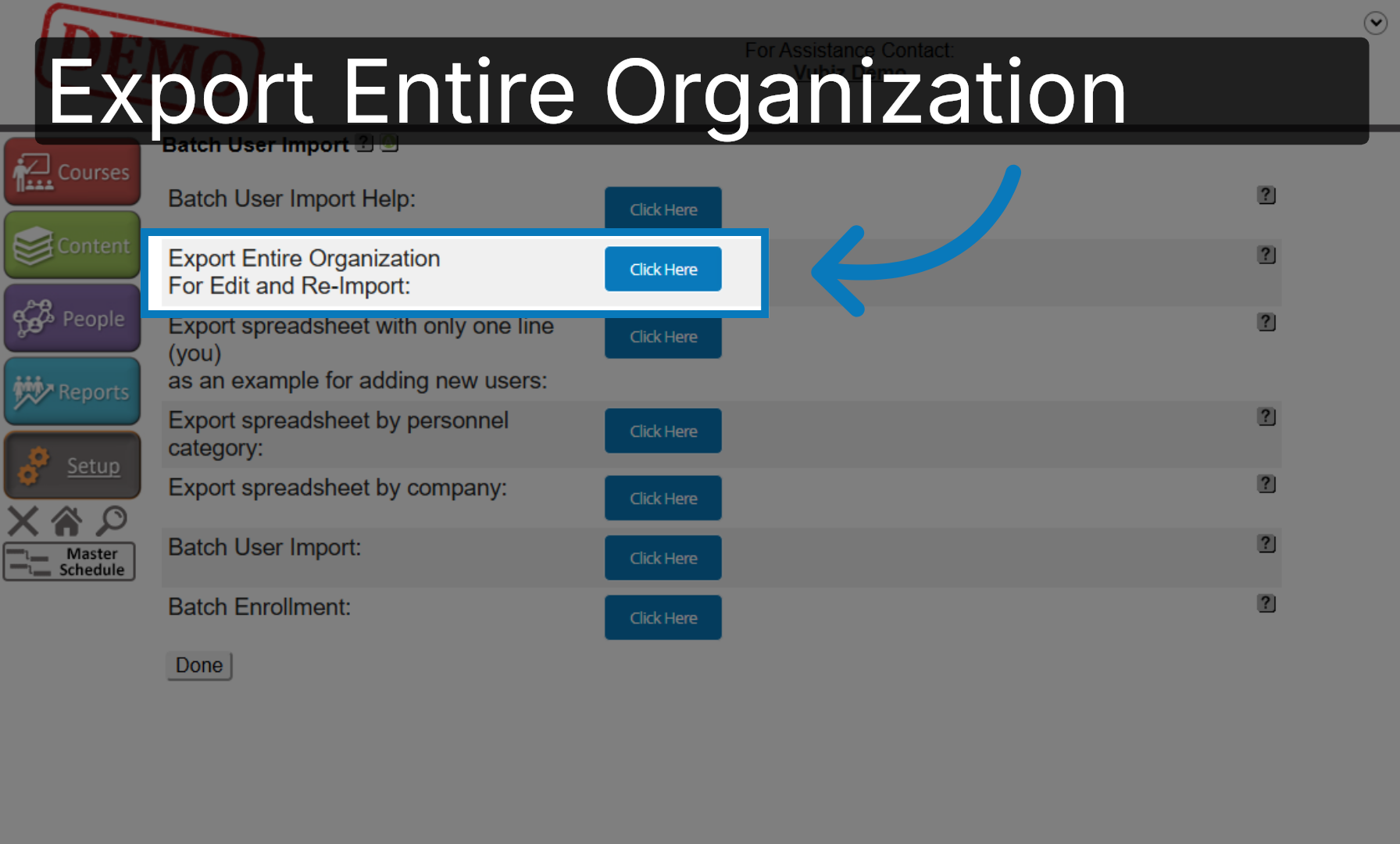
7. Export Entire Organization
You can export your entire organization, edit the file, and then re-import it.
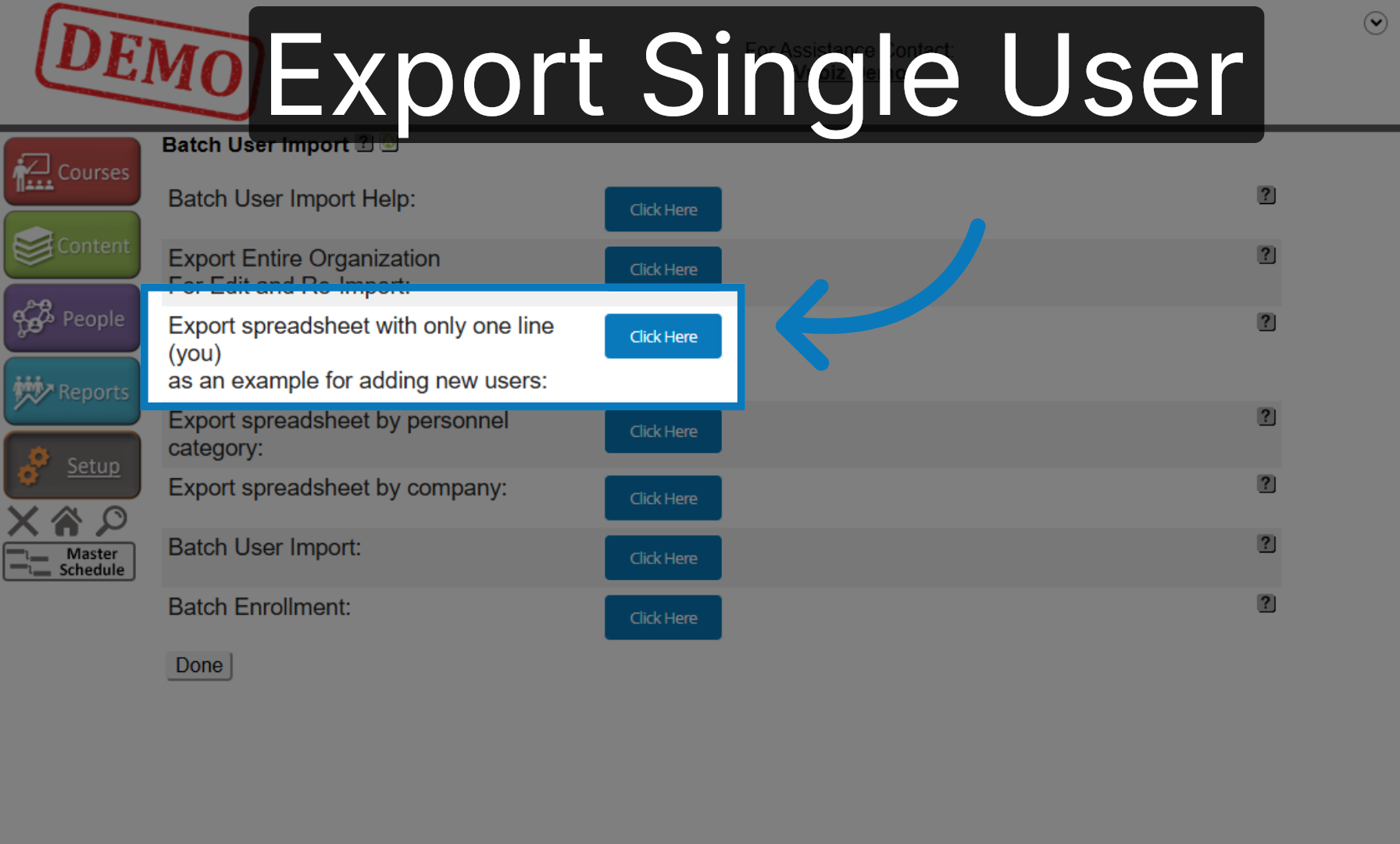
8. Export Single User Spreadsheet
You can export a spreadsheet with only one individual on the list.
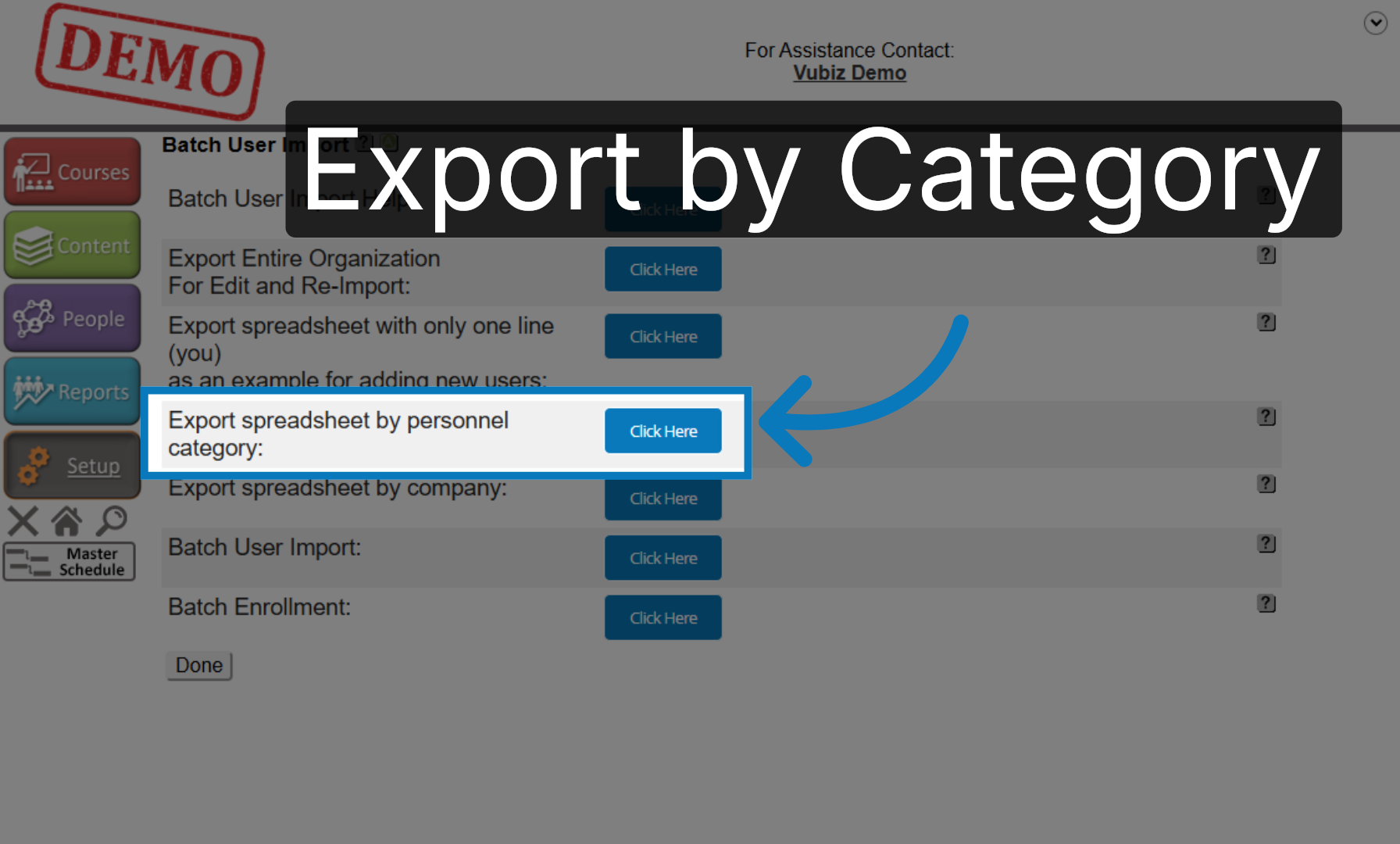
9. Export by Personnel Category
You can export the spreadsheet by personnel category if applicable.
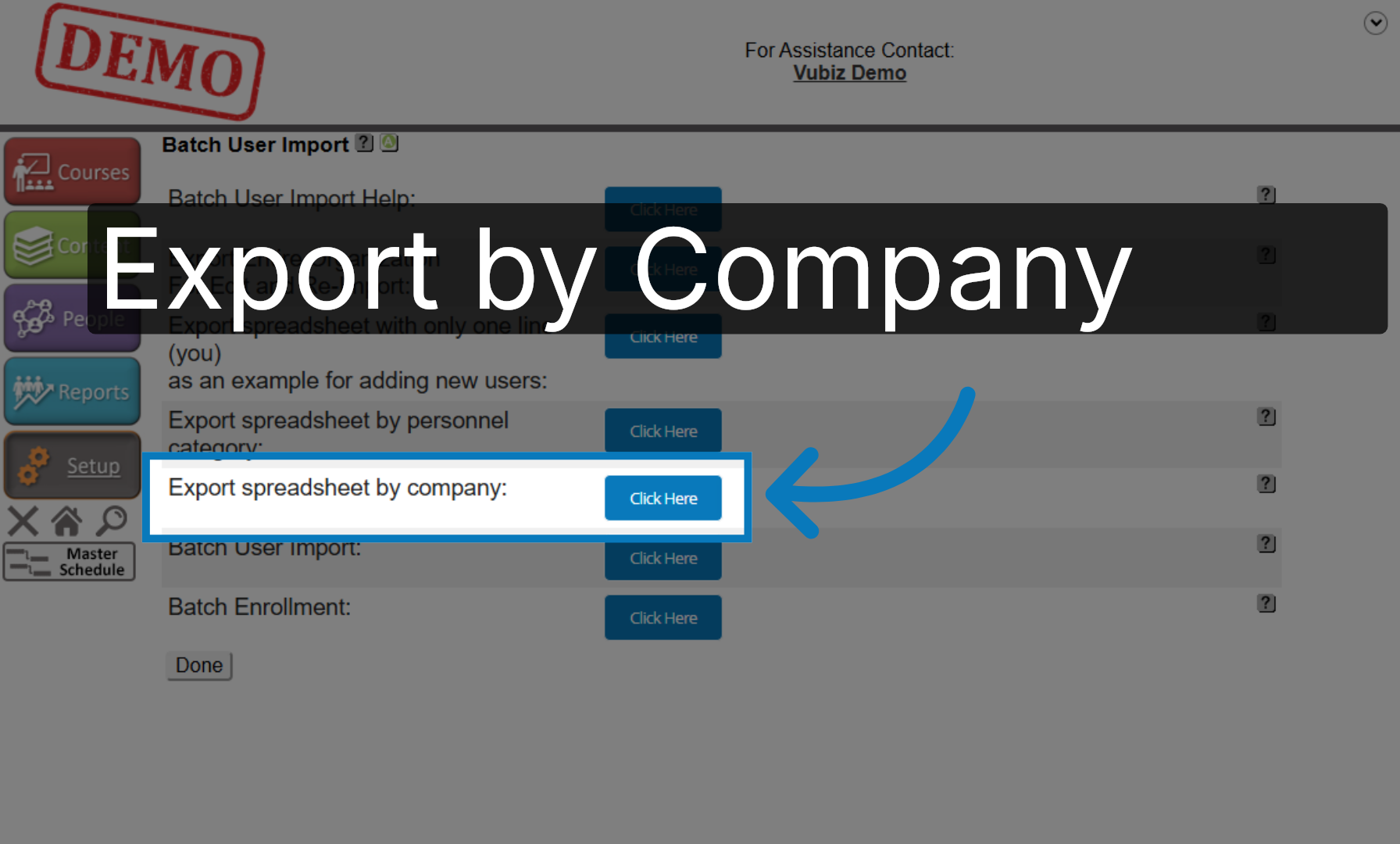
10. Export by Company
You can export the spreadsheet by company if applicable.
11. Export Entire Organization Again
We're going to export the entire organization for edit and re-import.
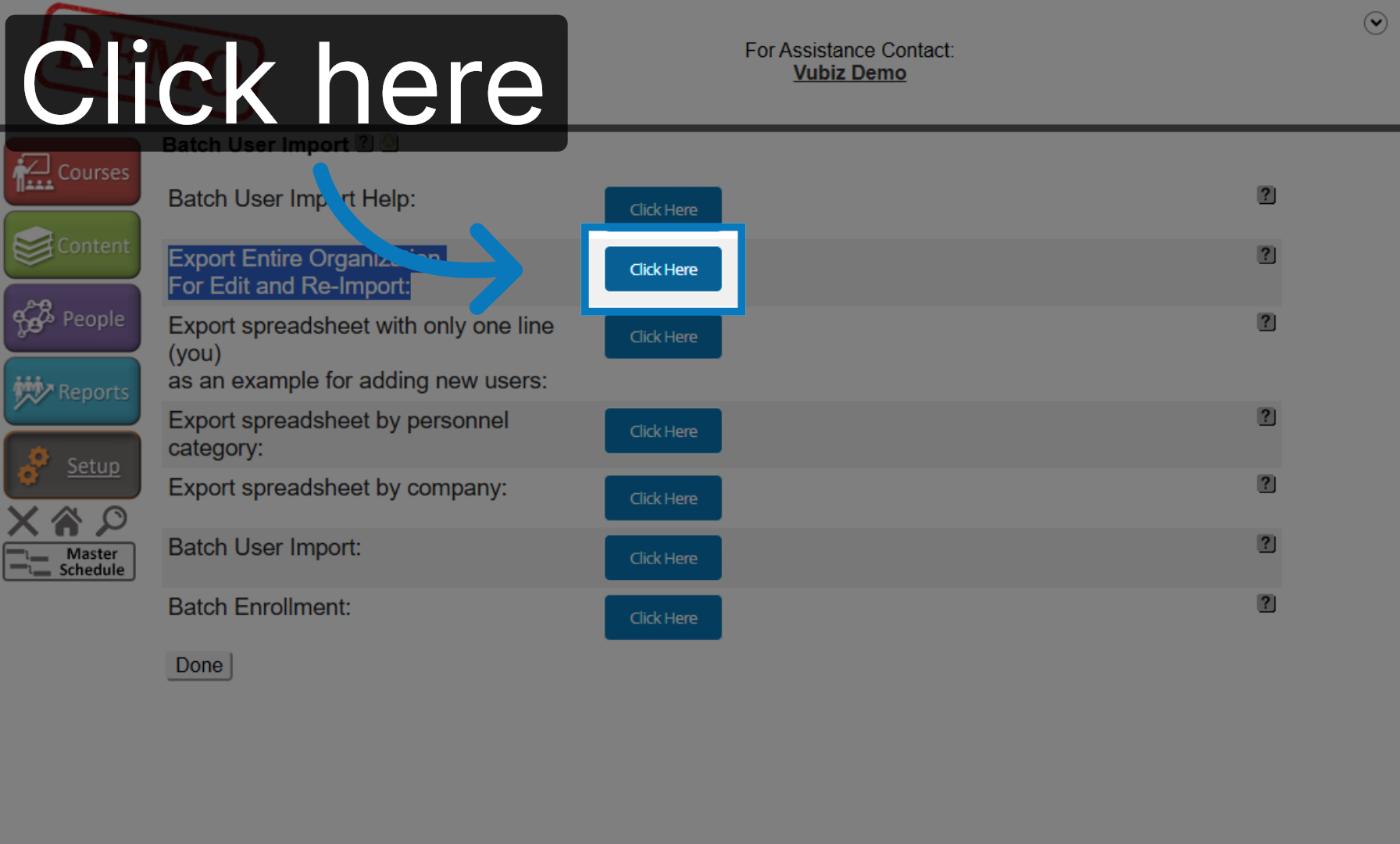
12. Download Excel Template
Clicking this option will download an Excel template that can be opened and edited.
13. The User Import Help
The user help can be selected.
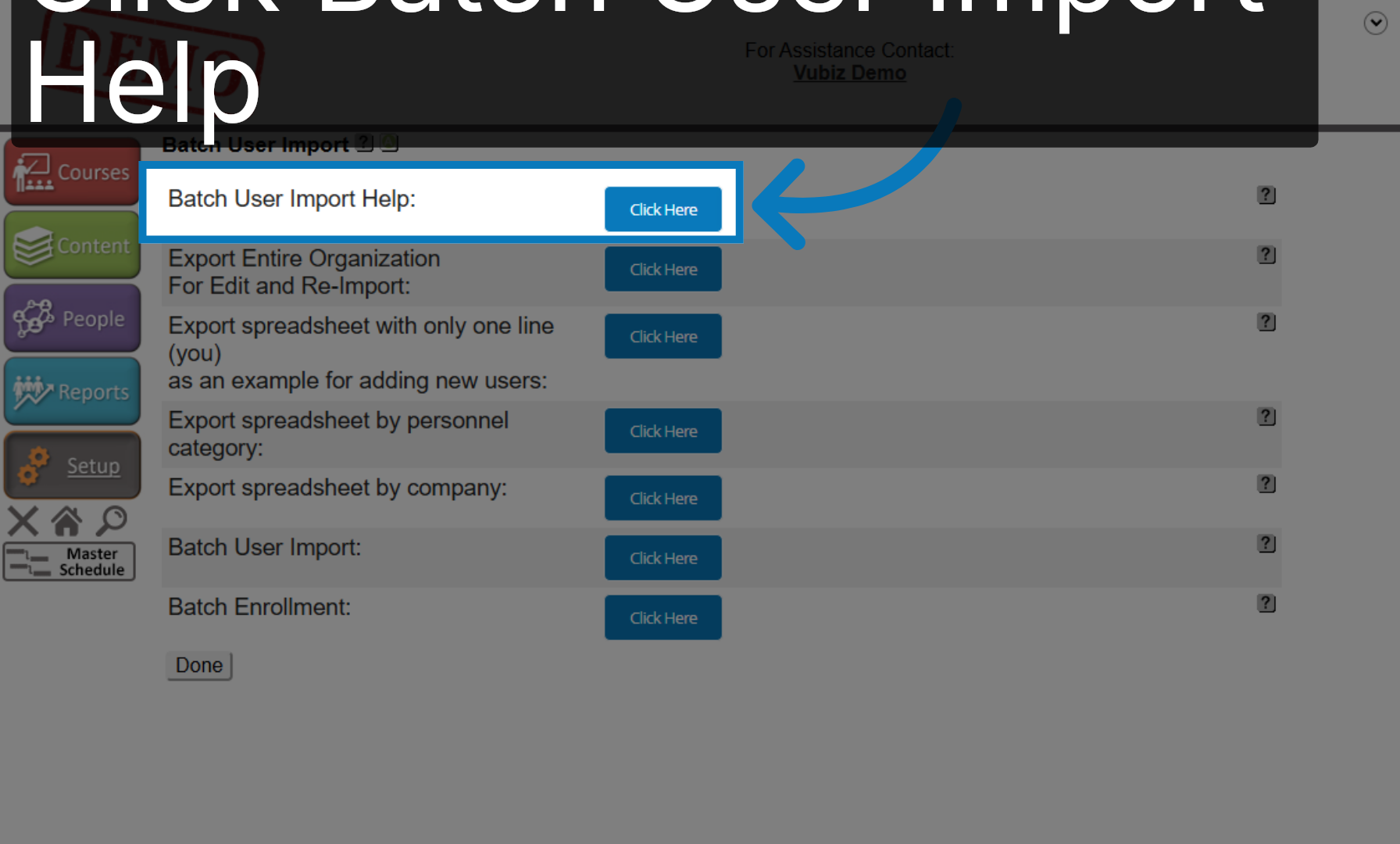
14. Access Batch User Options
This will give you a column by column breakdown of the requirements for the Excel template.
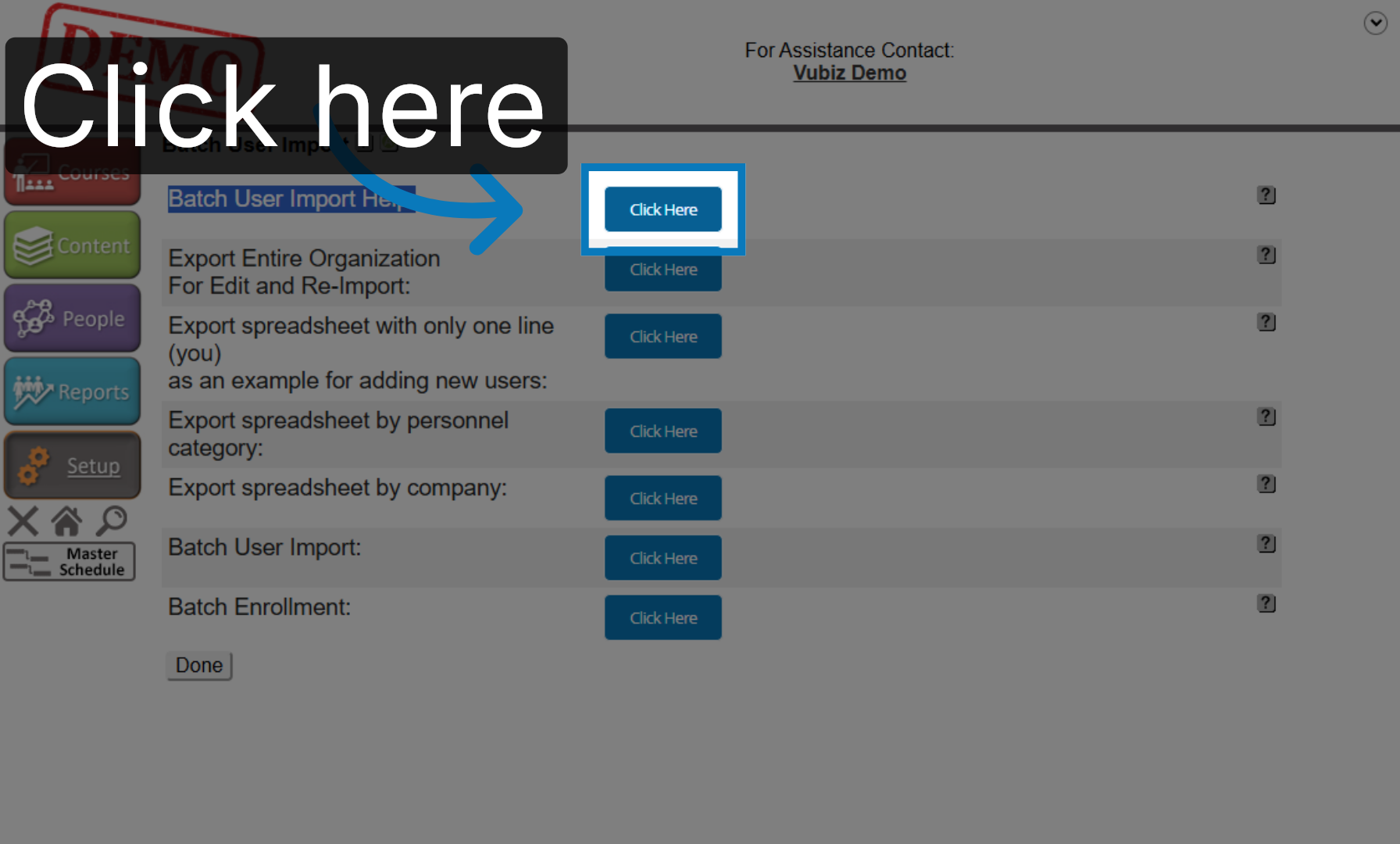
15. View Additional Options
If you have any questions about a specific column of information, please refer to this template and this help guide in order to answer those specific questions.
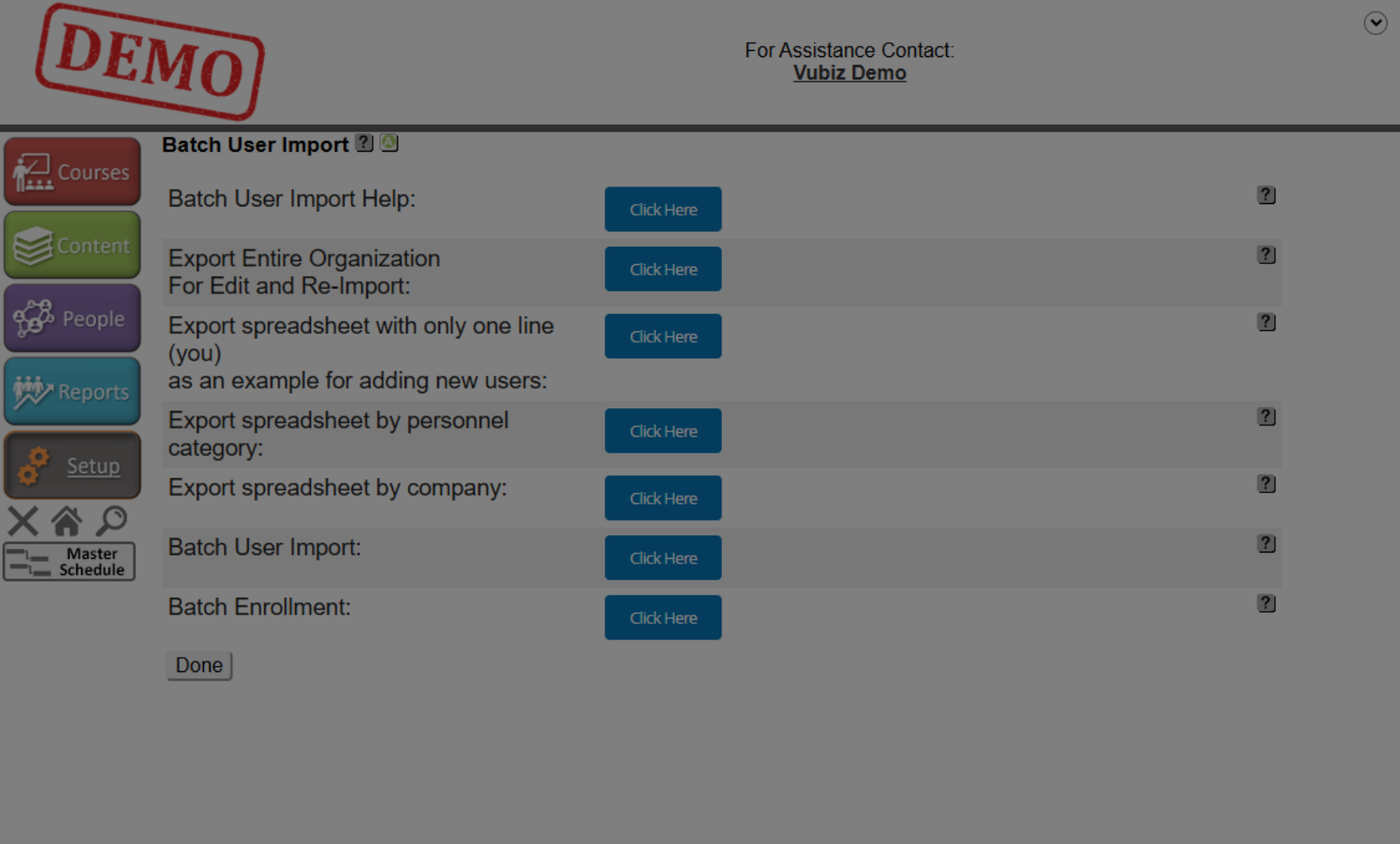
16. Select Batch User Import
Once you have made the changes to the Excel template you want and you have saved the file, you can then batch import.
17. Select Saved File
From this screen you can choose the file that you have previously saved.

18. Upload Selected File
Once you have selected the file, click the upload button.

19. View Processing Results
The file will then process. Please note that this might take a few minutes for the file to process.
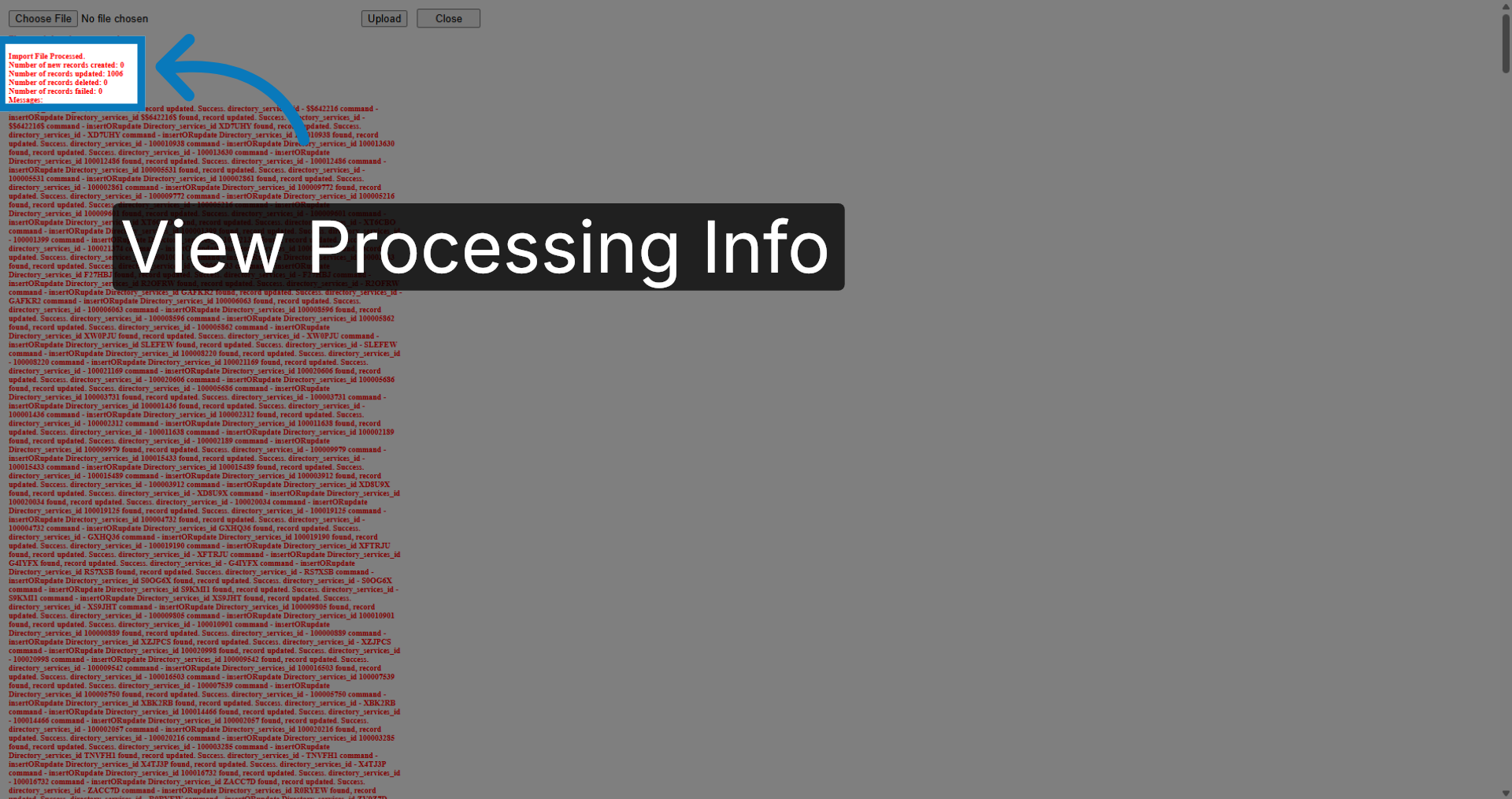
20. Close Processing Window
Once this is completed, you can click the close button.

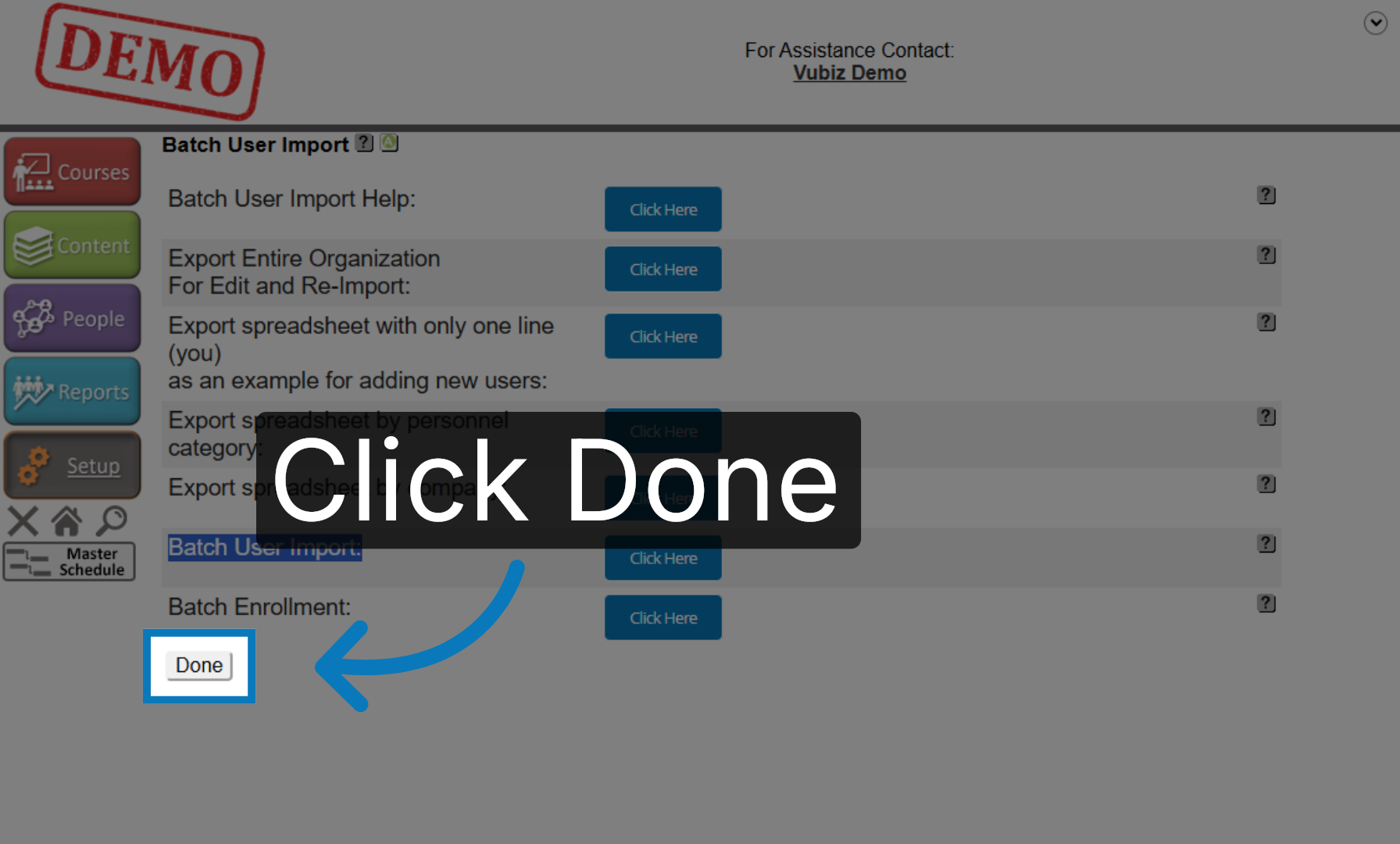
21. Complete Batch Process
To complete the process, click done, which returns you to the home screen.
You have successfully managed batch user import and export using the KMx platform. This process allows you to efficiently add, edit, or delete multiple learners at once by using the Excel template and batch import features. For further assistance, refer to the batch user help guides provided within the system.